
 Posting a first time or renewed pet license - Animal first
This topic documents how to post a first-time license, or a renewal of an existing license, starting with the animal.
Note that it's also possible to start with the person (owner) which is covered in the previous topic (Posting a first time or renewed pet license - Owner first)
Quick Reference - Animal first
- From the main menu, click Animal Ids/Animal Database
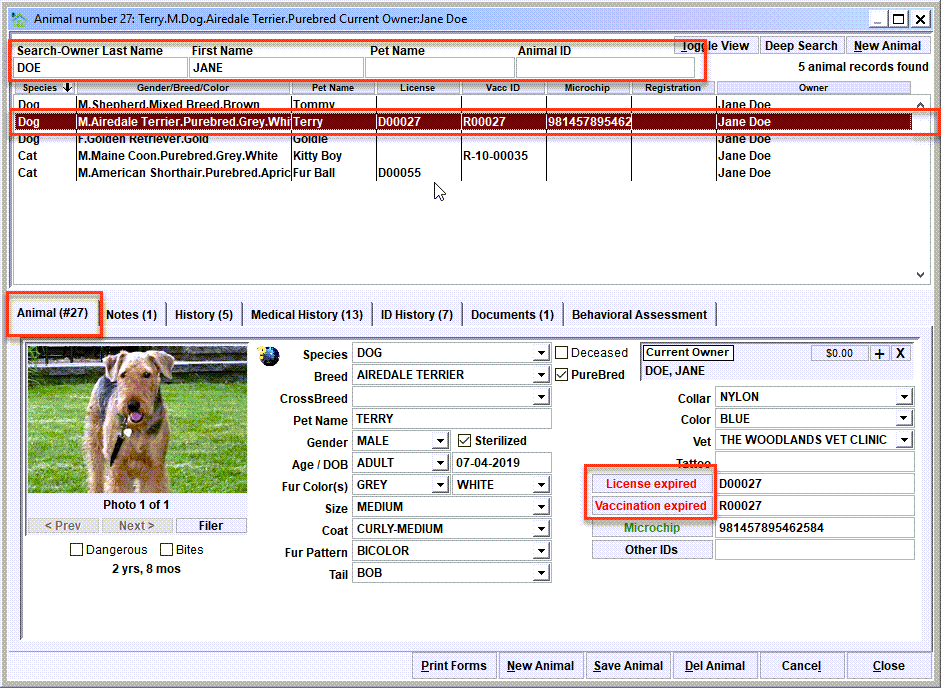
Determine if the pet to be licensed exists in the list. Search for the owner or animal using the search options at the top of the screen. If found, double-click the animal. If not found, click 'New Animal' to add a new record, enter the animal's profile information, link the owner from the person database as the 'Current Owner', and 'Save Animal'. Click the license button - It might have varying labels such as 'No License', 'License Expired', 'License Current'. This will open the License View. - Click the 'New License' button
This will create a new license record for the pet. Enter the various data elements about the license and rabies record, then 'Save License'. - Post the payment
- Print a License Certificate
Step 1 - The pet to be licensed
From the main menu, click Animal Ids/Animal Database - Search for the owner/animal using the search options at the top of the screen. If the owner/animal combination does not exist, click 'New Animal' to add a new animal record. If creating a new animal, it will also be necessary to connect a person as the 'Current Owner'.
In this example, the search specified last name DOE, first name JANE. Notice that five animal's owned by Jane Doe are found and displayed in the search results. In our example, we will be posting a renewal for Terry's pet license. Double-clicking the animal (Terry in our example) will open the Animal View where the various records from the Animal Identification module can be accessed. Click the license button to open the License View. It might have varying labels such as 'No License', 'License Expired', 'License Current' depending on the pet's license status.
Step 2 - Click the New License button
Click the 'New License' button - This will create a new license record for the pet. Enter the various data elements about the license and rabies record, then click 'Save License'.

Upon clicking 'New License', notice how the new license and new vaccination record data elements are blank, and data entry can begin.
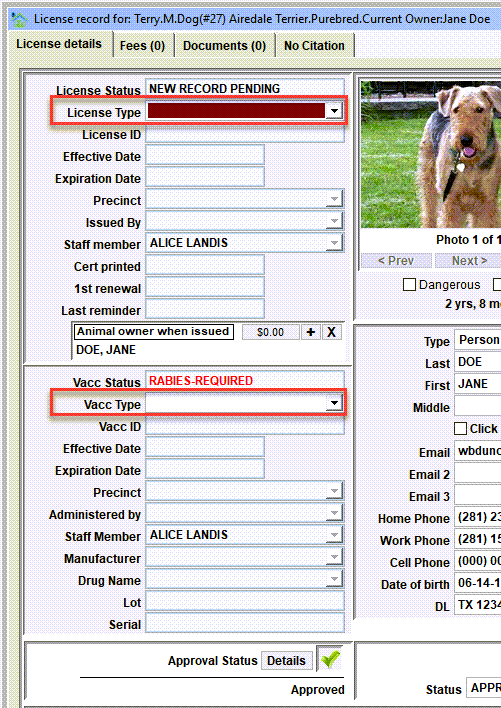
Start with the License Type being issued and complete the relevant data elements. For the rabies record, start with the Vacc Type and complete the relevant data elements.
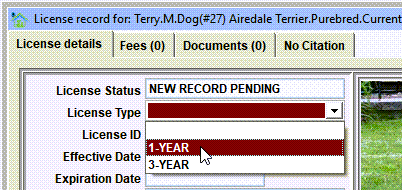
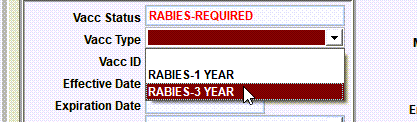
Fill in the relevant data elements.
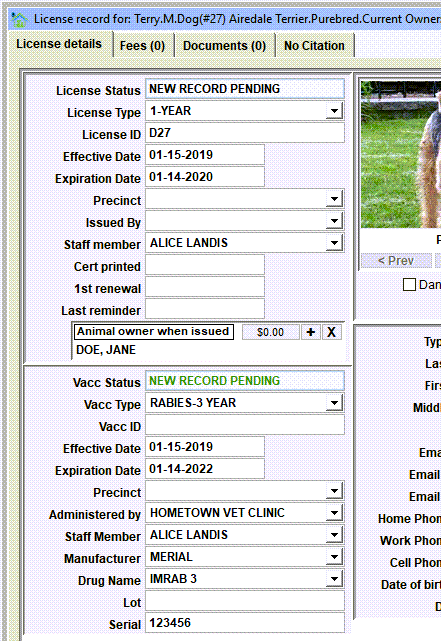
To finalize data entry, click 'Save License'.

Step 3 - Post the payment
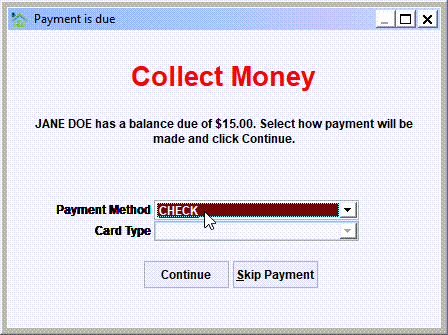
'Save License' will have posted the license fee to Shelter Pro's accounting module. Select the payment type and 'Continue' if this is the last posting for the owner.
Integration Feature
The first time a new record is saved will cause the accounting module to automatically post the appropriate fees for the transaction to the citizen's account. Since the citizen now has an account balance due, the payment prompt will automatically be shown prompting for payment.
Tip
If other activity will be posted for the owner, 'Skip Payment'. You can then post any other activity. Upon the last posting, you will be able to post a single payment which will cover the fees for all activity.
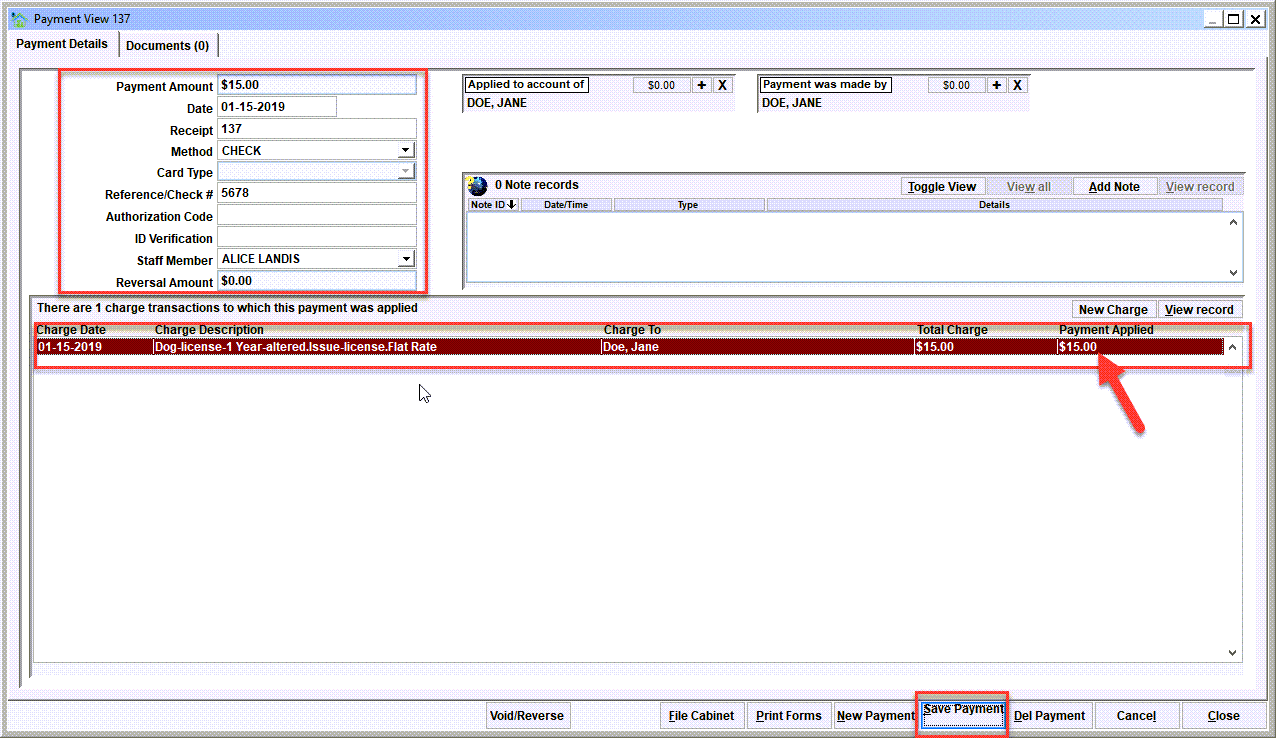
Enter any relevant information (for example, check number if payment by check, authorization code if payment by card, etc.) and 'Save Payment'. Note that the 'Payment Applied' column will now show the charges to be paid. Then 'Close' the payment view.
Step 4 - Print a License Certificate
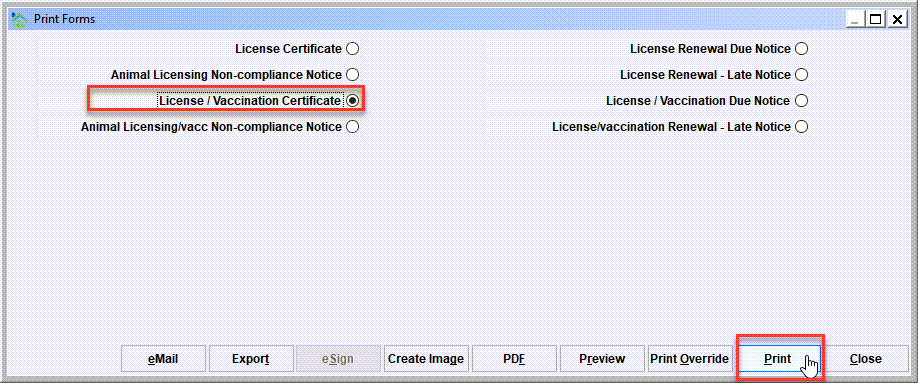
On the license view, select Print Forms.

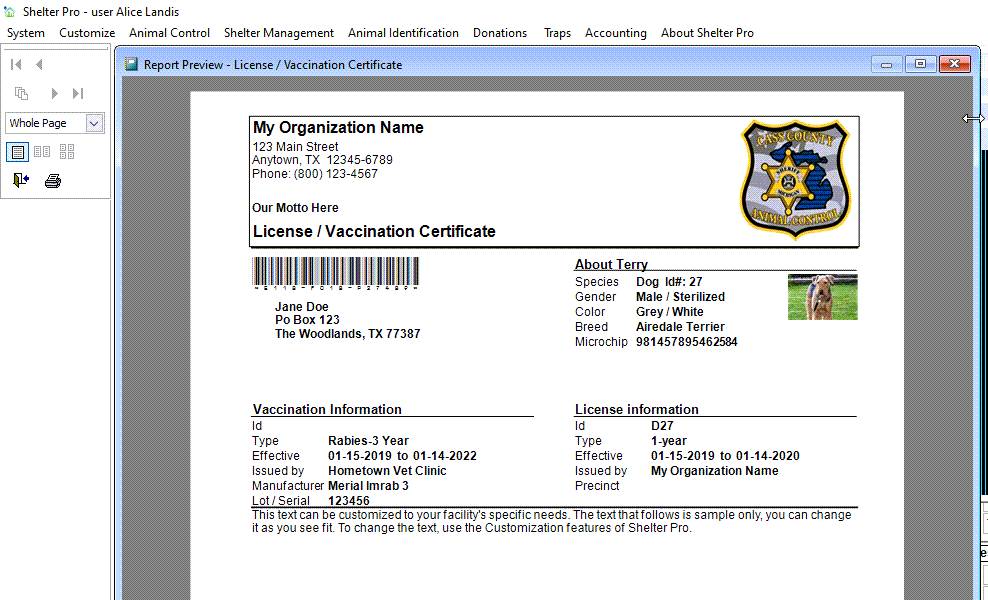
Choose 'License/Vaccination Certificate' or 'License Certificate' and PRINT.
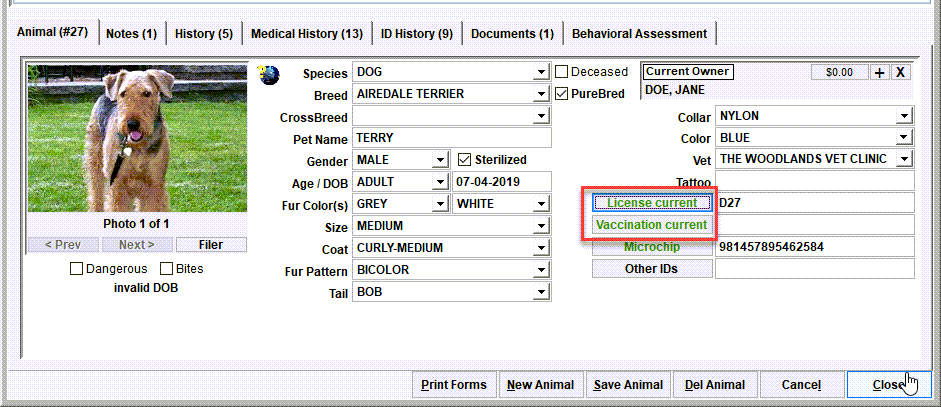
Close the License View. Note the animal record now shows the license to be 'current'. Close the Animal view and you're back to where you started!
Next Topic
Comment or report problem with topic