
 Generating a batch of license renewal notices
Generating a batch of license renewal notices
To generate a batch of license renewal notices, use the 'Batch Forms' feature of the Animal IDs File Cabinet.
For this example, we will be using licenses that expire in January 2019. Keep in mind, sending out renewal notices is a proactive process. For January 2019 expirations, this process would likely be getting done around 30 to 45 days prior to 1/1/2019.
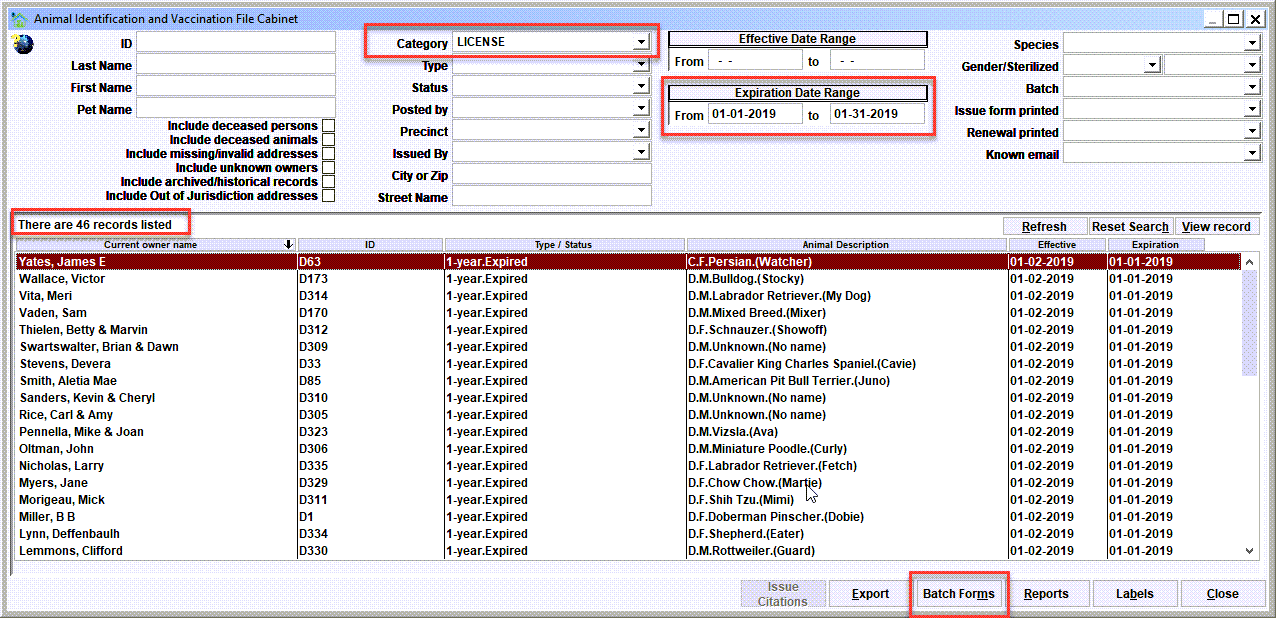
Notice the following:
- Category = 'License';
- Expiration Date Range = 01-01-2019 to 01-31-2019;
- The results show 46 records;
- The 'Batch Forms' button.
Tip: It's possible to send batch notices via email. Notice the 'Known Email' selection in the filter. Set this to 'YES' to filter the results to owners with an email address on record. Set it to 'NO' to filter the results to owner without an email address, which would typically need to be printed/mailed.
Tip: It's possible to filter the results to persons whose current physical address is in a particular city or postal code. Notice the 'City or Zip' selection in the filter. Set this to an appropriate value for your jurisdiction to filter the results.
Batch Forms
After getting the results, click the 'Batch Forms' button to bring up the various forms which can be generated for the animal ids module. In this example, we are generating the 'License/Vaccination Due Notice'. This particular form will include:
- The owner and their mailing address
- The pet that has a license that will be coming due for renewal
- The last license that is on the database for the pet
- The last rabies vaccination that is on the database for the pet
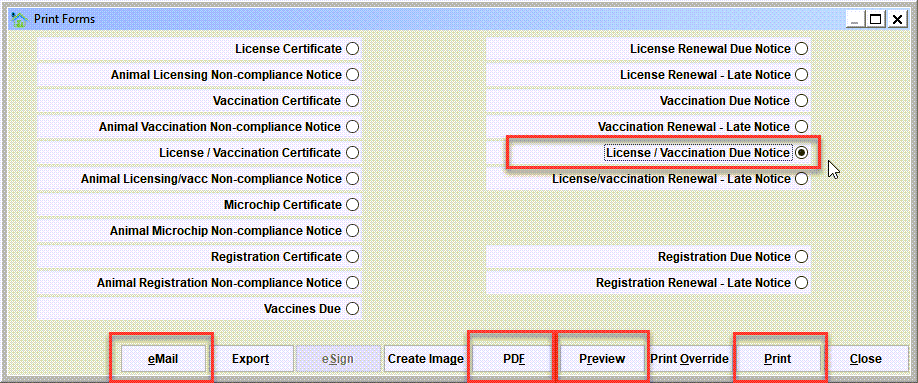
For generating the batch, notice the following buttons:
- The Print button will print the notices to the default printer.
- The Preview button will generate a preview of the printed batch.
- The PDF button will generate a pdf of the print batch.
- The Email button will email each notice the owner's email address.
Tip: Printing your batches to a PDF has some valuable benefits. The biggest benefit is that the PDF preserves the batch, and it's then possible to go back to the PDF as a 'trail' of the exact notices that were generated. So if an owner claims that they did not receive their notice, then going back the PDF is some level of confirmation of whether or not the notice was generated. Keep in mind you can print the batch from the PDF, and you can selectively print (or reprint) individual notices from the PDF.
Auto-marking the "1st Renewal" print date on a license record
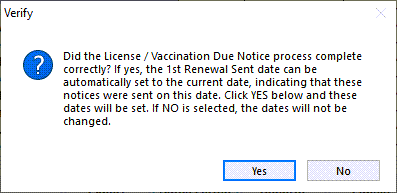
After batch printing is complete, you will get a prompt asking if the batch generation was successful, and should the '1st Renewal Sent' date be set to the current date. In our example, if YES is selected the date on all 46 records will be set to the current date which indicates that a renewal notice has been generated for each of the licenses.
Next Topic
Comment or report problem with topic