
 Posting a microchip record under the animal
Posting a microchip record under the animal
This topic covers how to add a microchip record to an animal, but not using the 'Case Medical' feature. This would be used to add a microchip record for a animal that is not a shelter pet.
Quick Reference
- Locate the animal
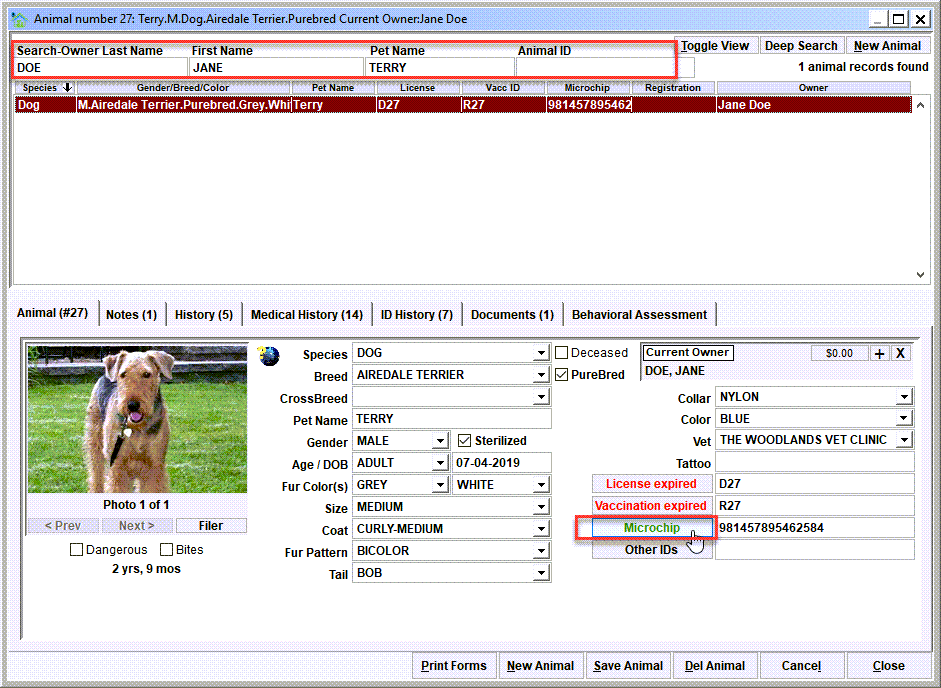
From the main menu, click Animal Ids/Animal Database. Search for the animal using the search options at the top of the screen. Click the 'Microchip' button - This will open the microchip view. If there was any previous microchip record history for the animal, the view will show that previous record.
If the animal does not exist, click 'New Animal' to add a new animal record. Note that it may also be necessary to attach the 'Current Owner' of the animal if creating a new animal record. - Click the 'New Chip' button
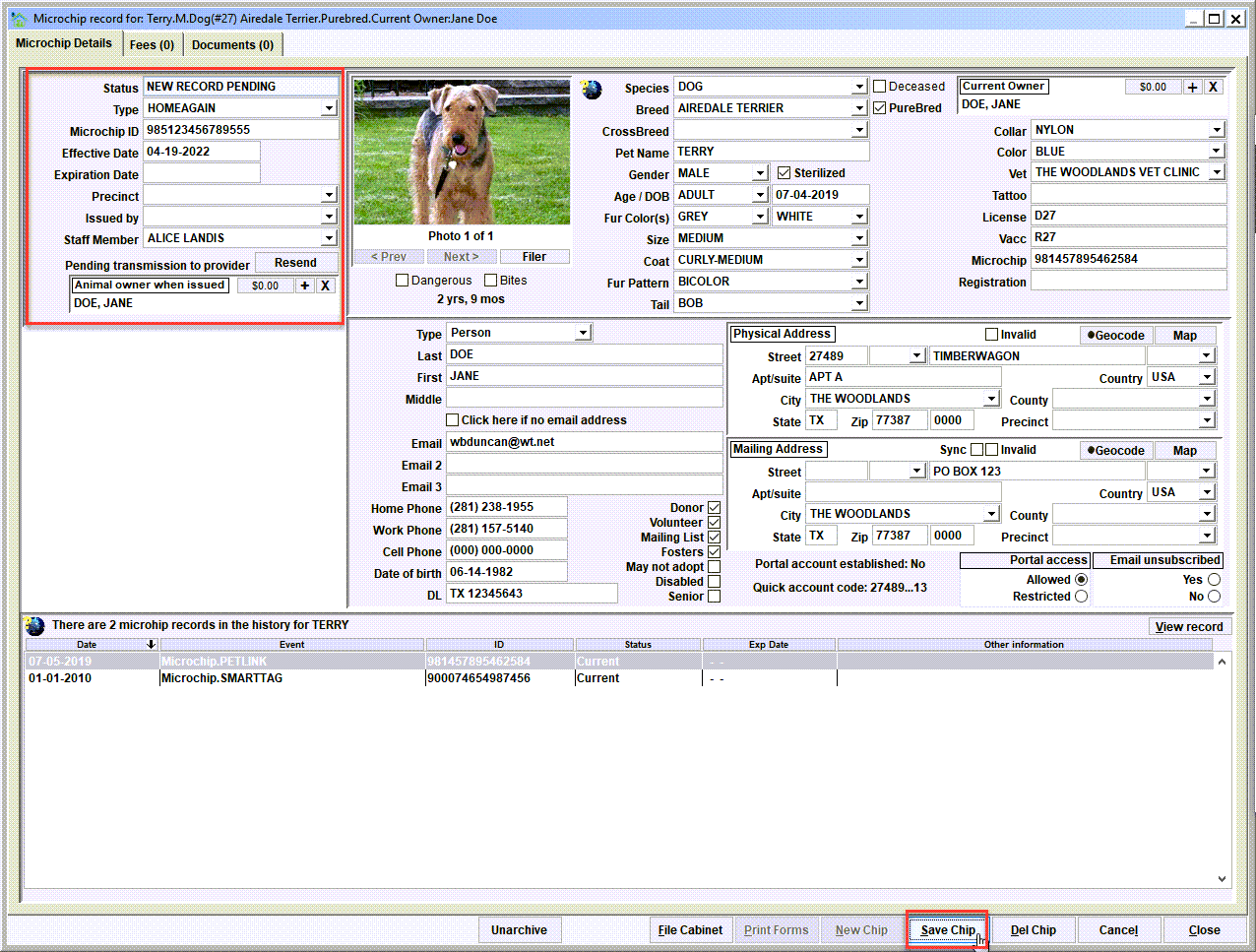
This will create a new microchip record for the pet. Enter the various data elements about the microchip, then 'Save Chip'.
Step 1 - Locate the animal
From the main menu, click Animal Ids/Animal Database. Search for the animal using the search options at the top of the screen.
In this example, the search specified last name DOE, first name JANE, pet name TERRY. Notice that one animal record was found and is displayed in the search results. If the animal does not exist, click 'New Animal' to add a new animal record. Note that it may also be necessary to attach the 'Current Owner' of the animal if creating a new animal record.
Click the 'Microchip' button - This will open the microchip view. If there was any previous microchip record history for the animal, the view will show that previous record.
Step 2 - Add the new microchip record
Click the 'New Chip' button - This will create a new microchip record for the pet. Upon clicking 'New Chip', notice how the microchip record data elements are blank, and data entry can begin.

Enter the various data elements about the microchip, then 'Save Chip'.
Next Topic
Comment or report problem with topic