Customize ID Rules
Customize ID Rules
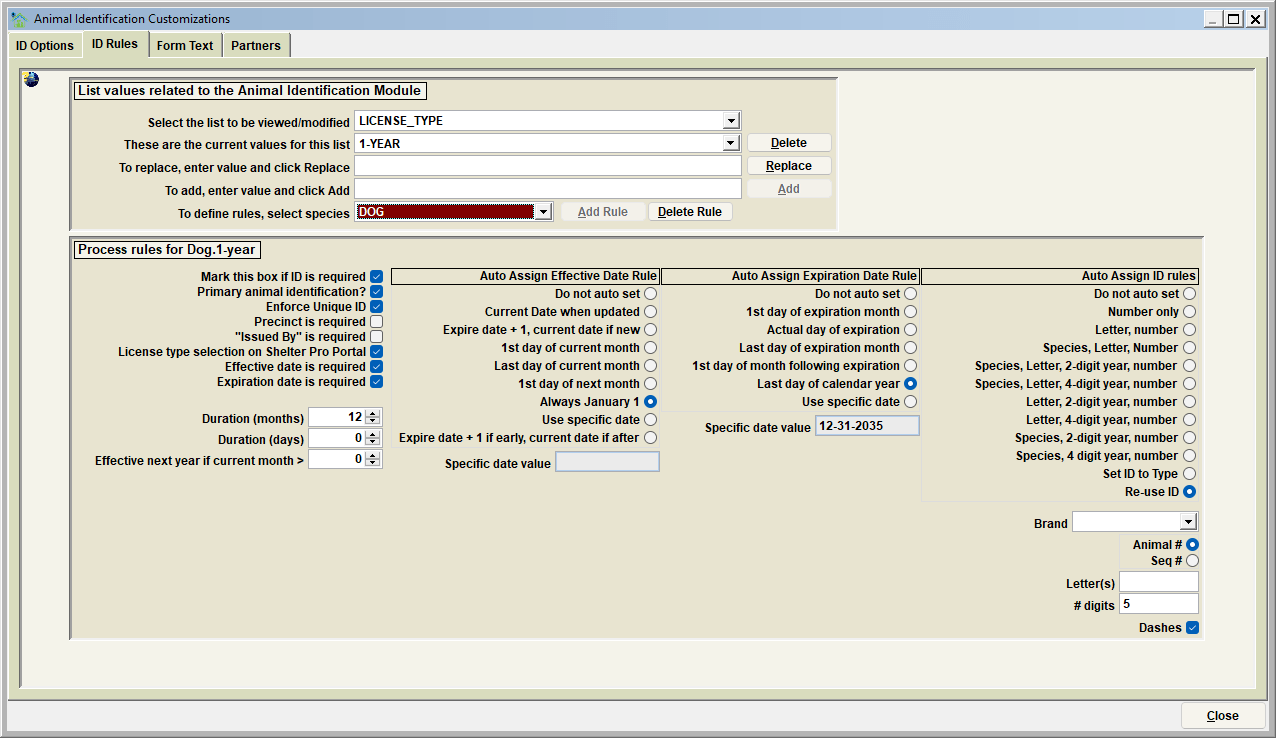
The ID Rules tab is where you can define various values for processing records in Shelter Pro's Animal Identification module. You set these parameters according to the needs of your facility.
List Values Related to the Animal Identification Module
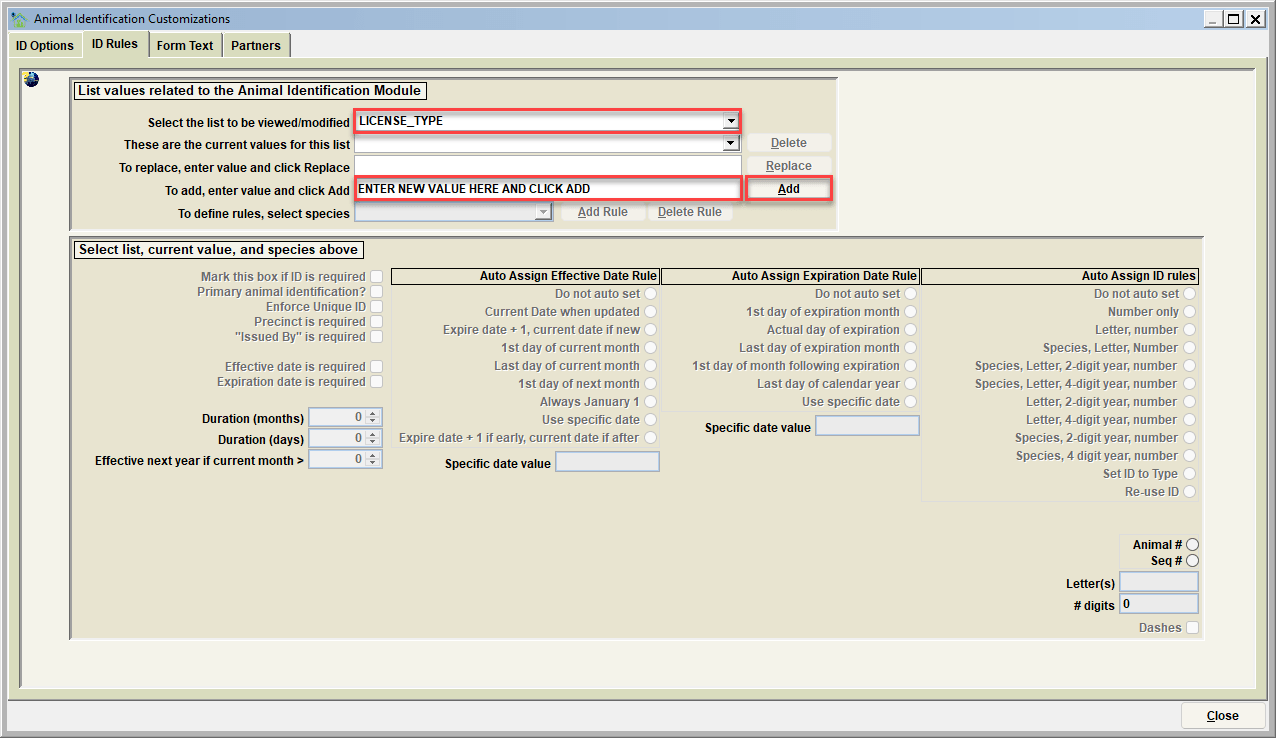
The list values functionality will allow you to delete, replace, or add values. Follow the instructions on the screen to do each of these functions. The specific lists which can be modified include:
Select the list to be viewed/modified
Use this feature to modify various descriptor values for this module. Values can be added, deleted, and/or replaced. Follow the instructions on the screen to complete each of these functions.
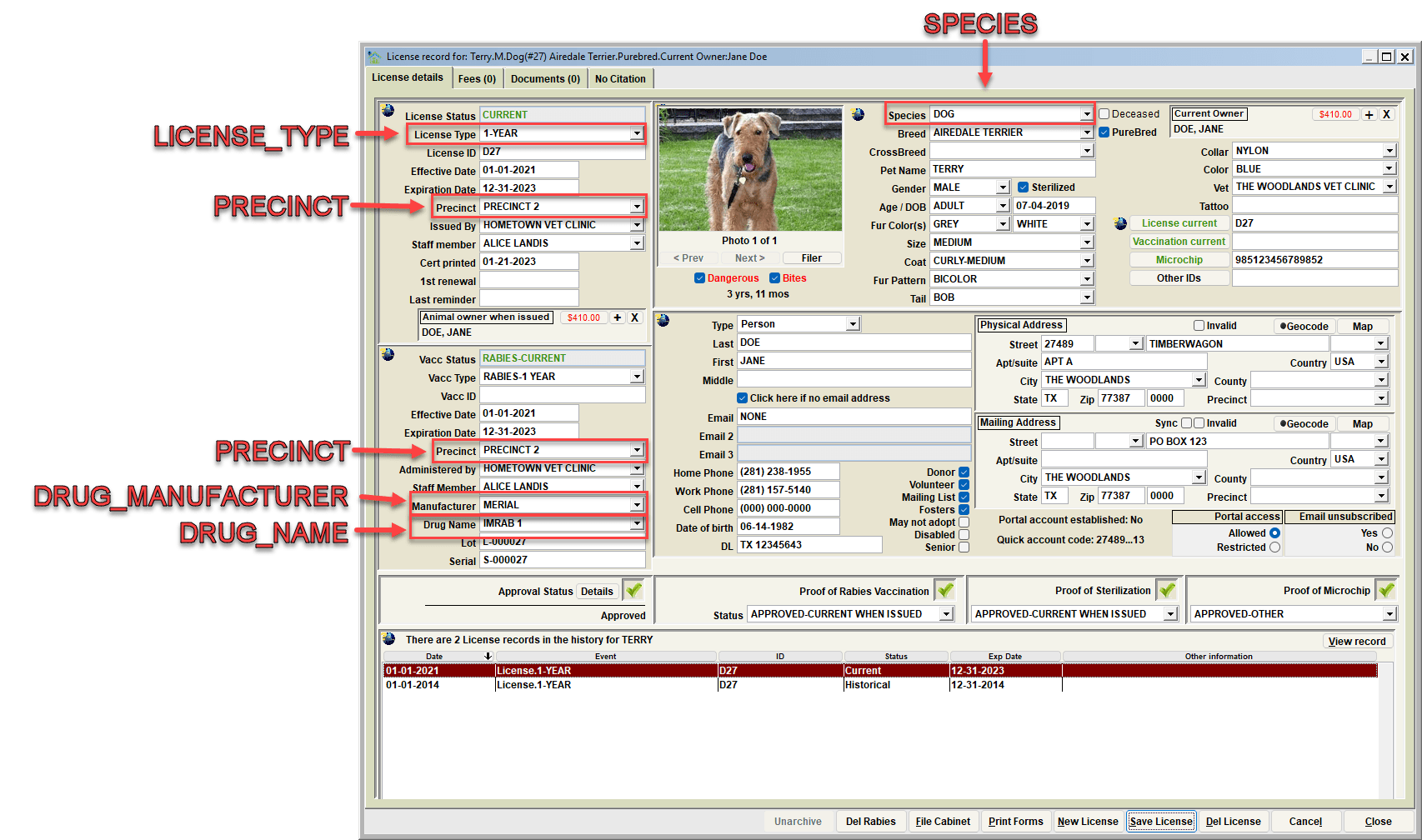
The specific lists which can be modified include:
| List to be modified | Description |
|---|---|
| LICENSE_TYPE | The license types applicable |
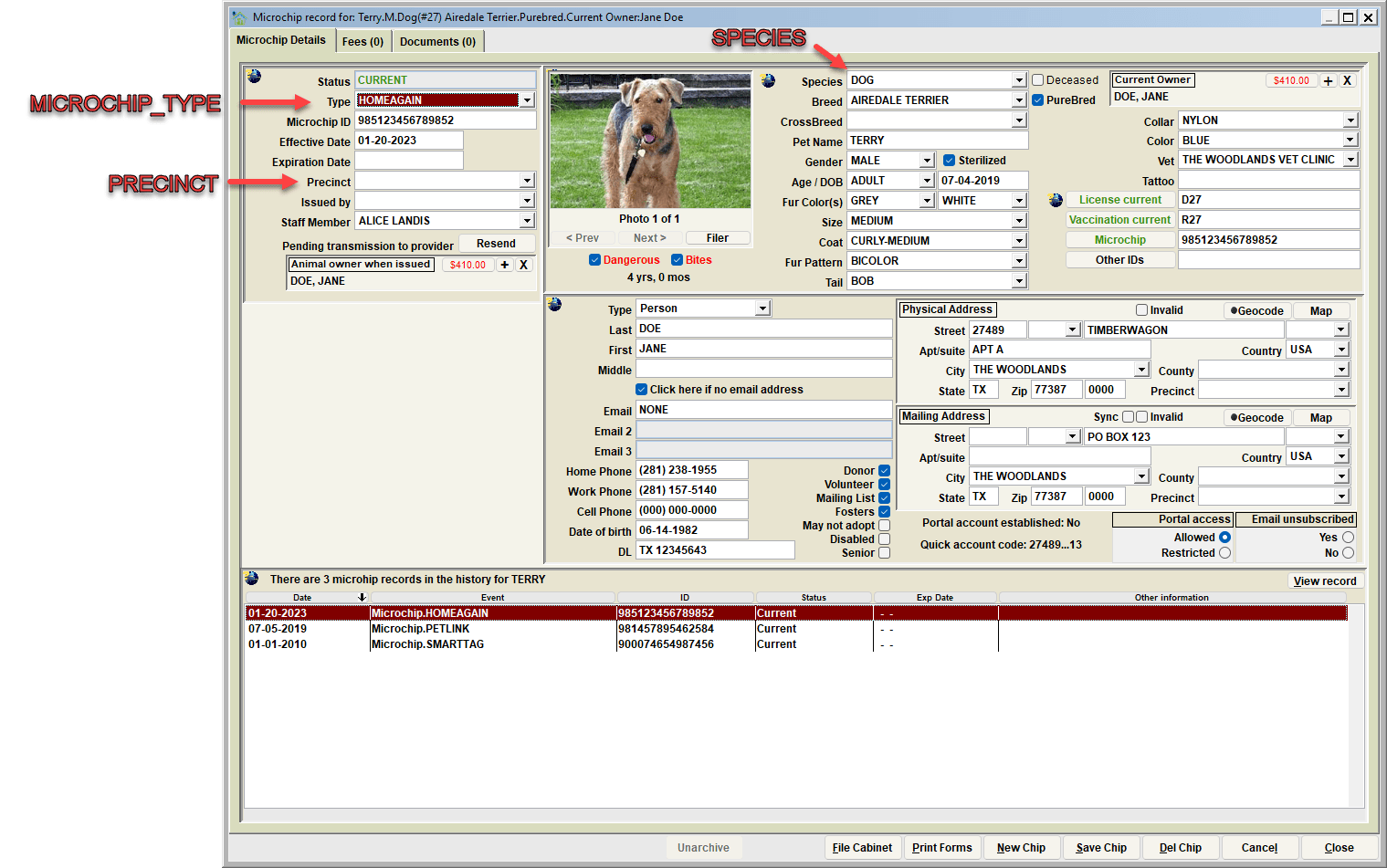
| MICROCHIP_TYPE | The microchip types (usally manufacturer) type applicable |
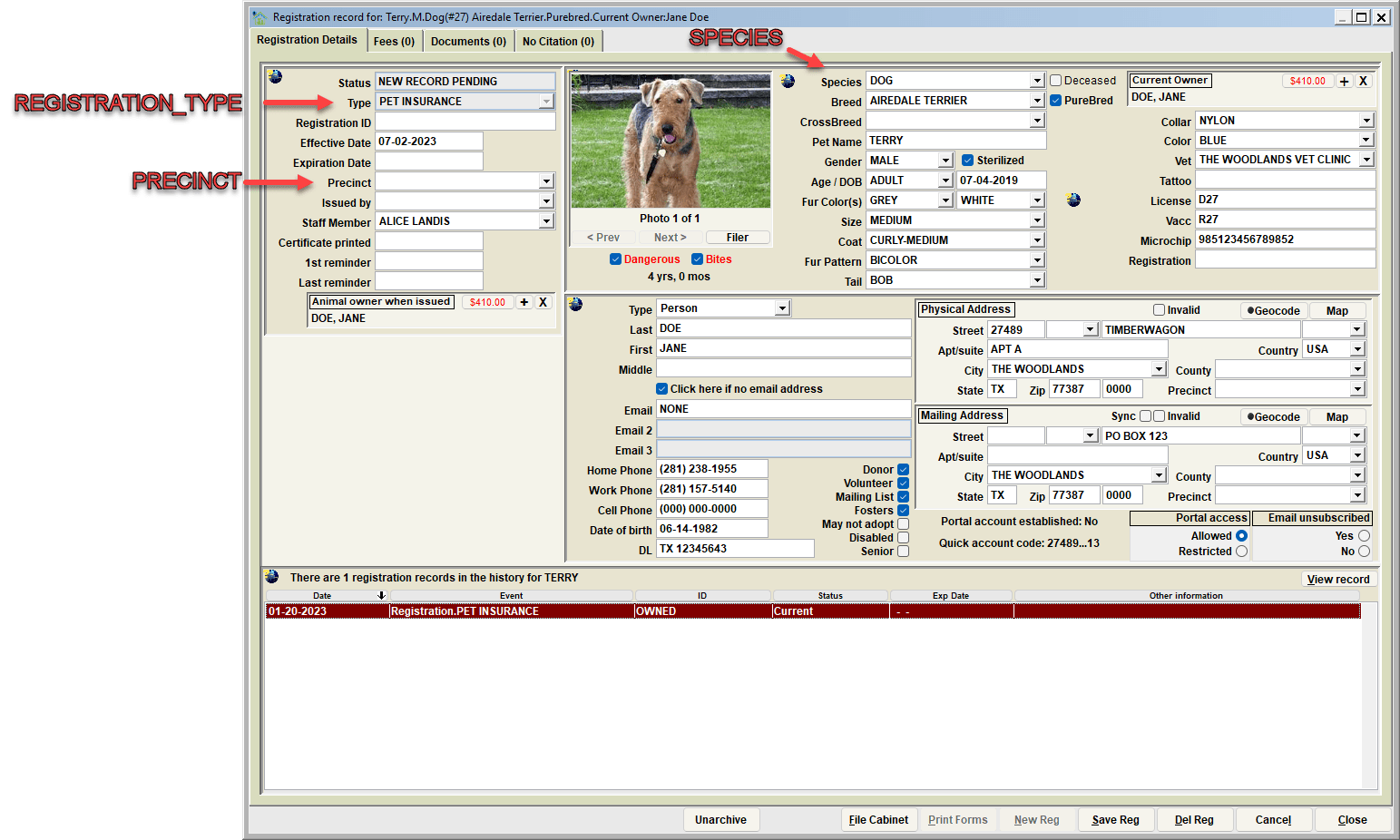
| REGESTERATION_TYPE | Th registeration types applicable |
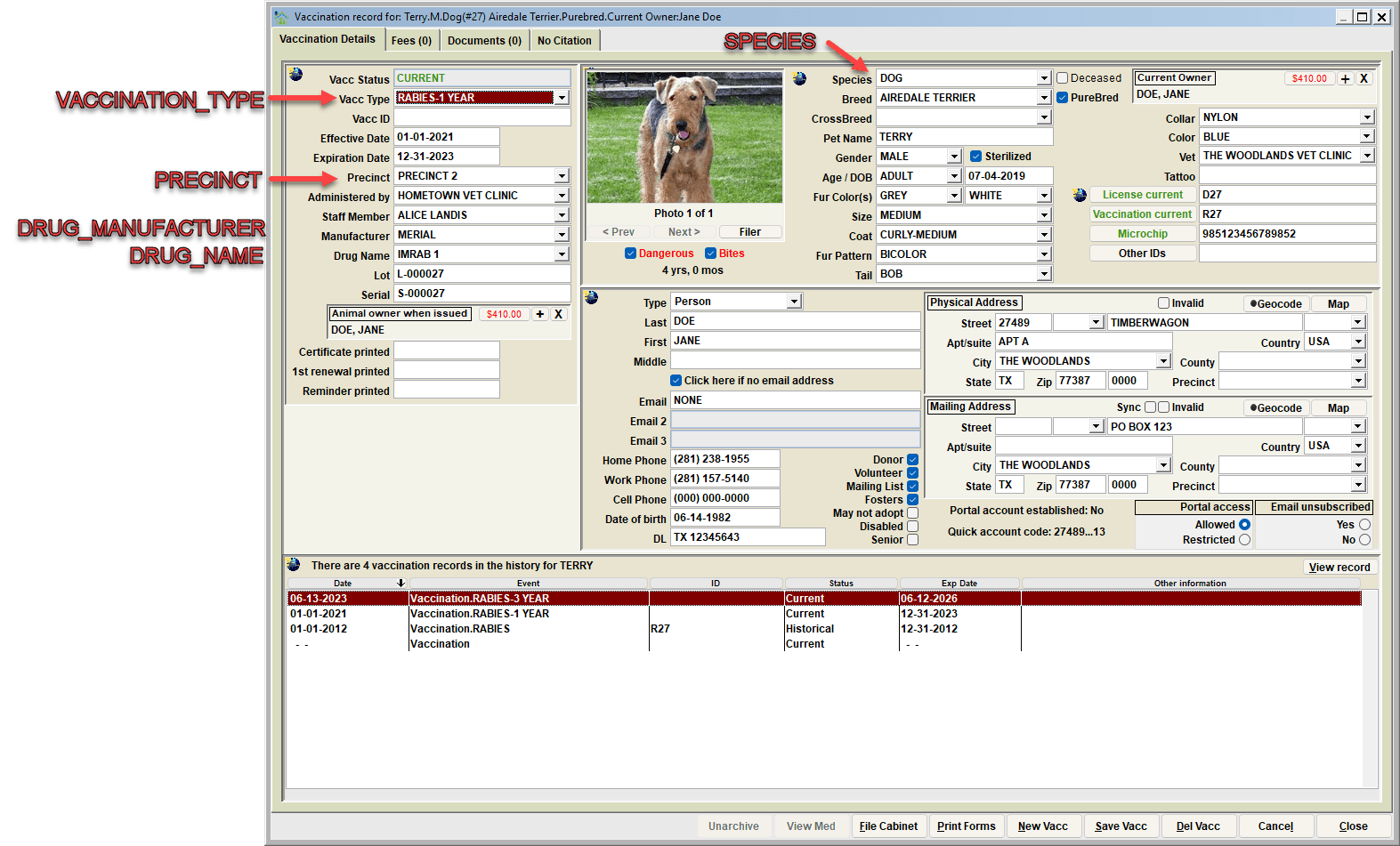
| VACCINATION_TYPE | The vaccination types applicable |
| SPECIES | The recognized list of SPECIES |
| PRECINCT | Geographic areas where records are associated |
| ID_BRANDLICENSE | A reconized list of Brand names. |
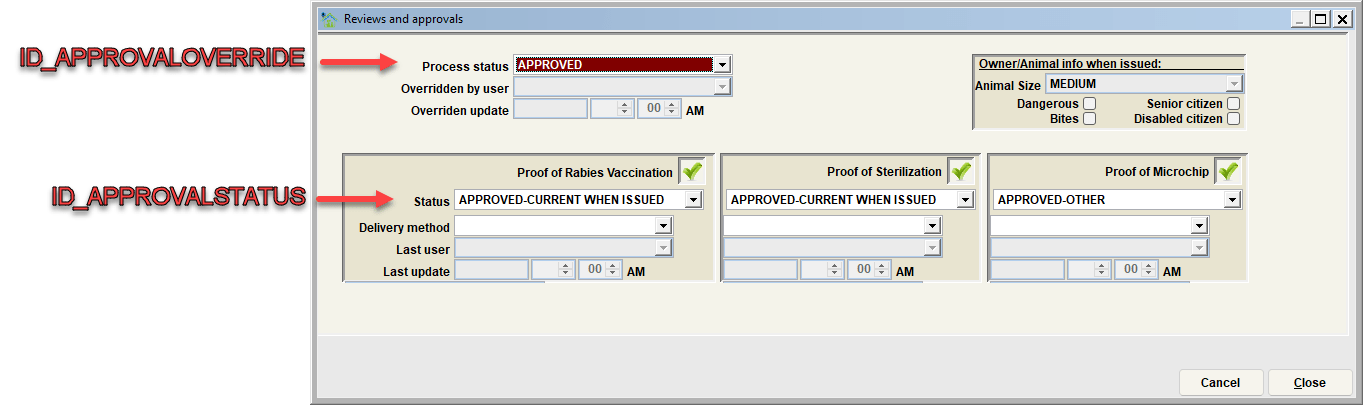
| ID_APPROVALSTATUS | Review and approval status types. (Approved-Verified, Pending-Awaiting Approval, Denied-Documents Expired, Etc.) |
| ID_APPROVALOVERRIDE | Review and approval process status types. Where in the approval process the license is at. (Approved, Pending Review, Rejected, Etc.) |
| DRUG_MANUFACTURER | Drug manufactures (for recording vaccination records) |
| DRUG_NAME | Drug names (for recording vaccination records) |
| DRUG_NAME_RABIES | Drug names rabies (for recording rabies vaccination records) |
Visualizing Changes in Animal ID View:
ID RULES
This window allows you to enter processing parameters for Animal Identification. These are called "ID Rules".
By default, Shelter Pro tracks four categories of Animal Identification:
- License IDs (LICENSE_TYPE)
- Vaccination IDs (VACCINATION_TYPE)
- Microchip IDs (MICROCHIP_TYPE)
- Registration IDs (REGISTRATION_TYPE)
For your specific requirements, you will only use the ID types applicable to your area. It is not necessary to use all four. Further differentiation for each ID type must be made by DOG versus CAT (see the Controls for Species list box in the screen sample).
Additional ID Rules can be added and customized for the needs of the agency. This will be explained in further detail later in this section.
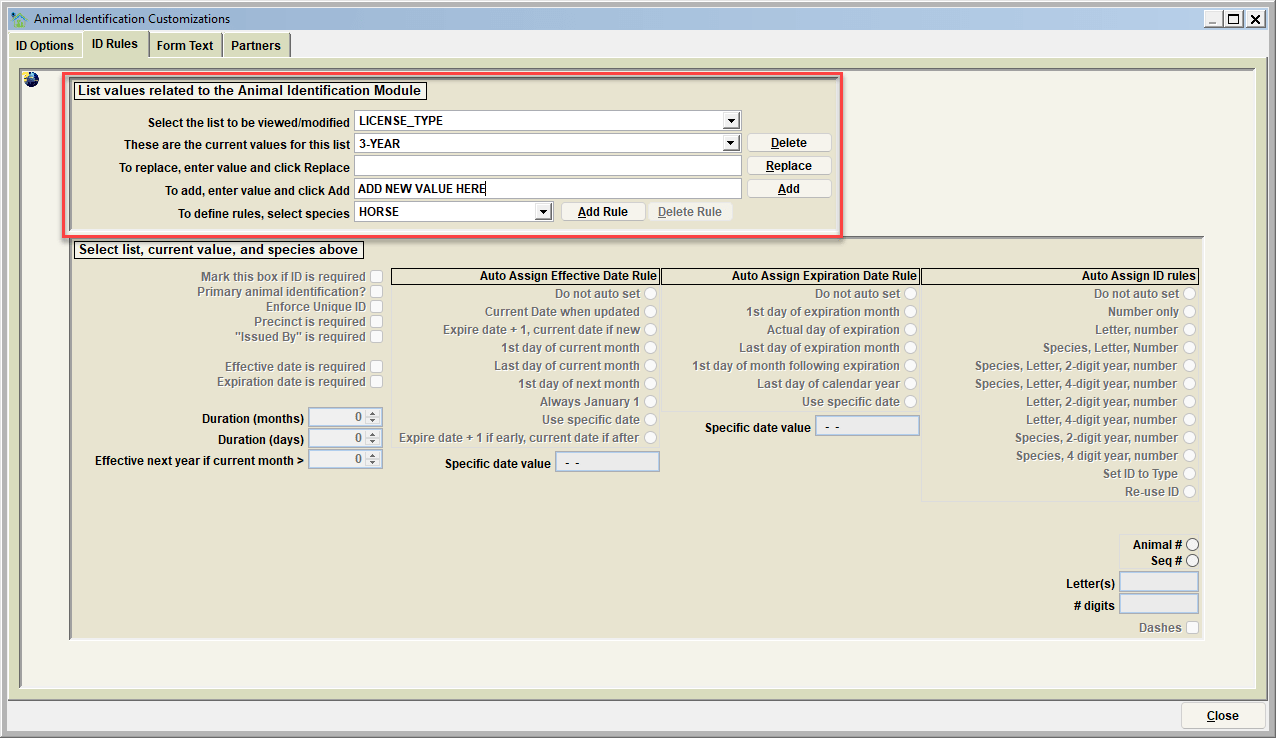
To Define a Process Rule For a New ID Type:
- Select one of the ID types to be added in "Select the dropdown list to be viewed/modified."
- Make sure the ID type does not already exist in "These are the current values for this list."
- Enter the ID type to be added in "To add, enter value here and click Add."
- Click the Add button.
- Select the species for the new ID type in "To define rules, select species"
- Click Add Rule.
- Edit the various values in the remaining fields on the screen. See below for descriptions on how each setting functions.
To Modify a Prossing Rule For an Existing ID Type:
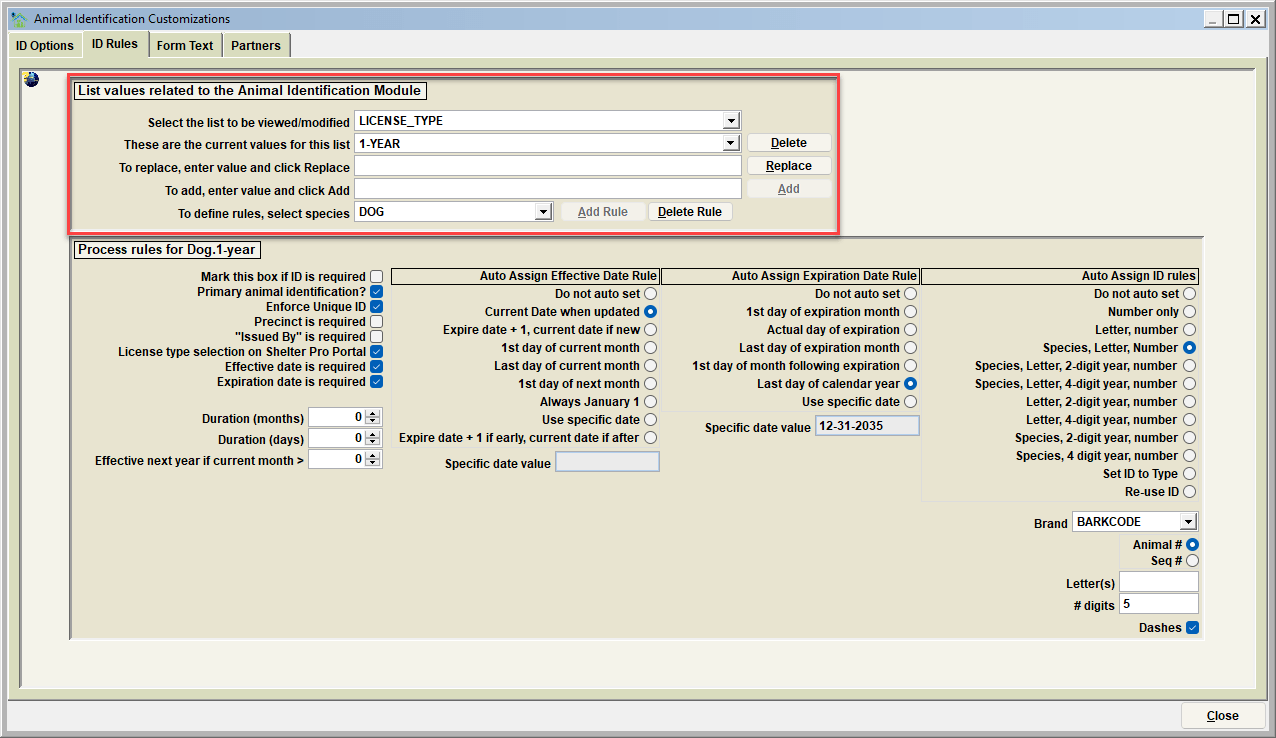
- Select one of the ID types to be modified in "Select the list to be viewed/modified."
- Select the ID type in "These are the current values for this list."
- Select the species for the new ID type in "To define rules, select species"
- Edit the various values in the remaining fields on the screen. See below for descriptions on how each setting functions.
Processing ID Type Rules
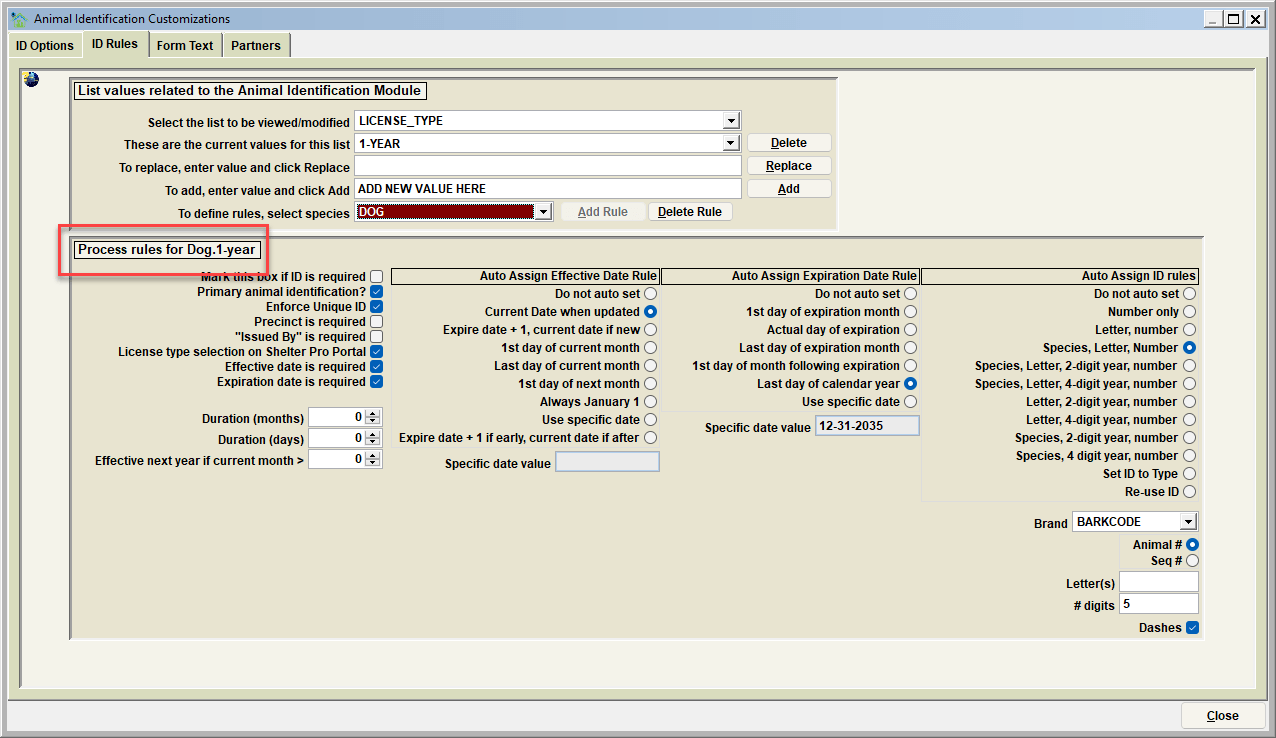
The upper left hand corner of the processing ID type rules box with indicate which ID type is being viewed/modified
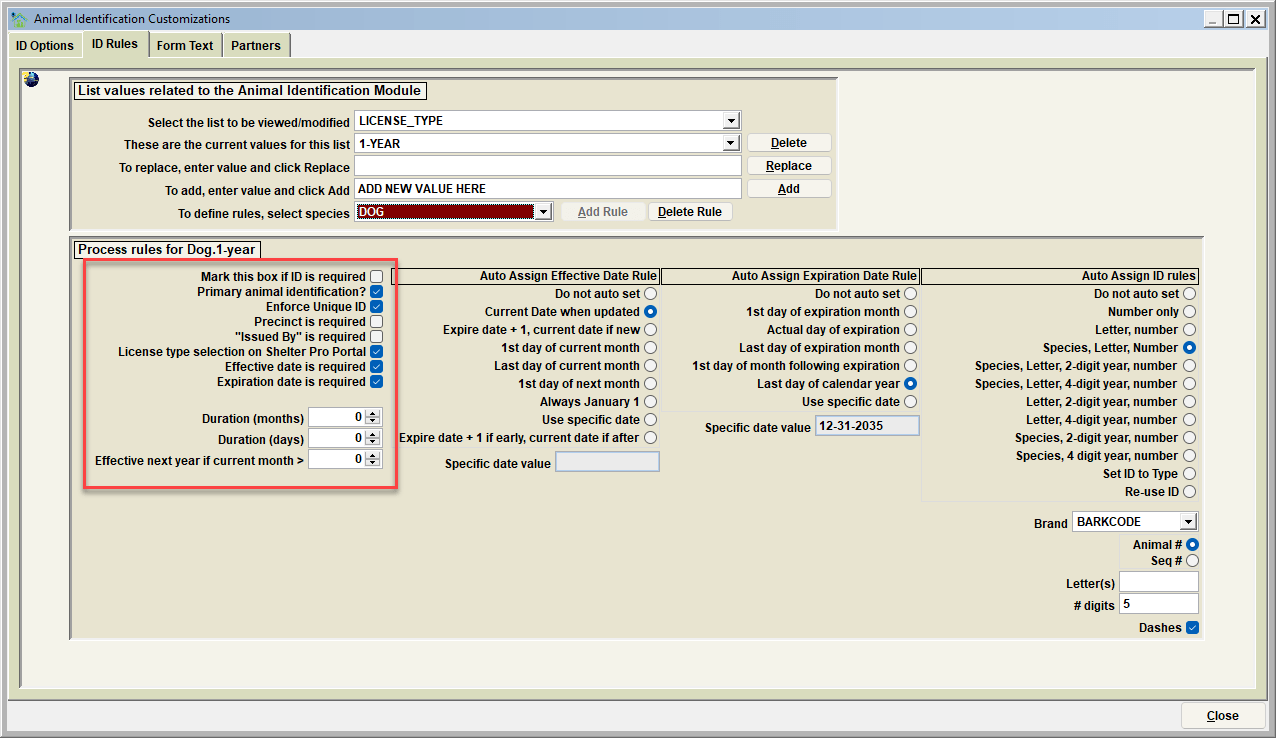
Mark this box if ID is required This field will determine if an ID value (for example, a License ID, or a Vaccination ID) must be specified before a new ID record can be saved. If this feature is used, an error message will appear if an attempt is made to save a record without the required ID.
Primary animal identification For each of the four ID categories (license, vacc, microchip, registration), only one record for each animal is considered the "most recent" or "last known". When you are viewing a record on the Animal Database, you will notice there are four ID fields, one for each category. The ID value shown on the Animal Database is set based on this indicator.
To illustrate, let's say we are tracking two Vaccination Types, Rabies and Heartworm. Rabies would be considered a Primary Animal Identification because there would be a Rabies Tag ID associated with the vaccination. However, for Heartworm vaccinations/preventative we don't associate a "Heartworm" tag. In this example, when a new Rabies ID record is added, the Animal Database view would show the Rabies Tag. When the Heartworm record is added, the animal's vaccination ID (which was set to the Rabies ID) would not be modified due to the Heartworm record. We would simply be tracking the Heartworm vaccination record for informational and historical purposes.
Enforce Unique ID This value will determine if an assigned ID value must be unique. This means that no other ID value can exist on the database. If this feature is used, an error message will appear if an attempt is made to save an ID record which has an ID that has been previously assigned. This helps avoid accidentally assigning the same ID multiple times.
Precinct is required This field will determine if the Precinct must be specified before a new ID can be saved. If this feature is used, an error message will appear if an attempt is made to save a new record without the required Precinct information.
Issued By is required This field will determine if the Issuer must be specified before a new ID can be saved. If this feature is used, an error message will appear if an attempt is made to save a new record without the required Issuer information.
Note that there are three indicators on the Person Database to identify Issuers:
- License Issuer
- Vaccination Issuer
- Registration Issuer
If a person record's Veterinarian or Vet Clinic indicator is set, these will show the Microchip Issuer selection box as Microchips are commonly done as a medical procedure.
License type selection on Shelter Pro Portal
-
Effective Date There are several options for determining the Effective Date of the issue or renewal of an ID record. Select the options that fit the specific processing requirements of the ID type.
Effective Date Required If the effective date of an ID is mandatory, check this box. Note that if "Do not auto set" is also selected, the user will be required to enter an effective date.
Expiration Date There are several options for determining the Expiration Date of the issue or renewal of an ID record. Select the options that fit the specific processing requirements of the ID type. Note that setting expiration dates will work in conjunction with the "Duration Months" setting to determine an ID records expected term. For this discussion, we will use the 12 month duration shown.
Expiration Date Required If the expiration date of an ID is mandatory, check this box. Note that if "Do not auto set" is also selected, the user will be required to enter an expiration date.
Duration (months)
This field determines the duration of an ID record by months. For example:
- A 1 Year License would be set to 12 months;
- A 3 Year License would be set to 36 months;
- A Lifetime license would be set to 0, and the Expiration Date would be set to Do not auto set, as a lifetime license would never expire.
Duration (Days) This field determines the duration of an ID record by days. (Stand alone or in addition to the months) For example:
- A 30 day License would be set to 30 days;
- A 1 year license with a 5 day grace period would be set to 12 months with 5 days;
- A Lifetime license would be set to 0, and the Expiration Date would be set to Do not auto set, as a lifetime license would never expire.
Effective next year if current month This field determines when a new record's effective date is automatically set forward to the next calendar year. This field can be used if new ID records, which are issued late in the year, should be considered effective for the next year, rather than the current year.
As an example, let's say your county or city requires annual licensing for each calendar year, and someone is issued a new license in mid-December. Rather than forcing the new license to be effective the current calendar year, the rules may be defined that these would be effective for the next calendar year by setting this field to 11 (11 represents November, so new records after November would be automatically set forward to next year).
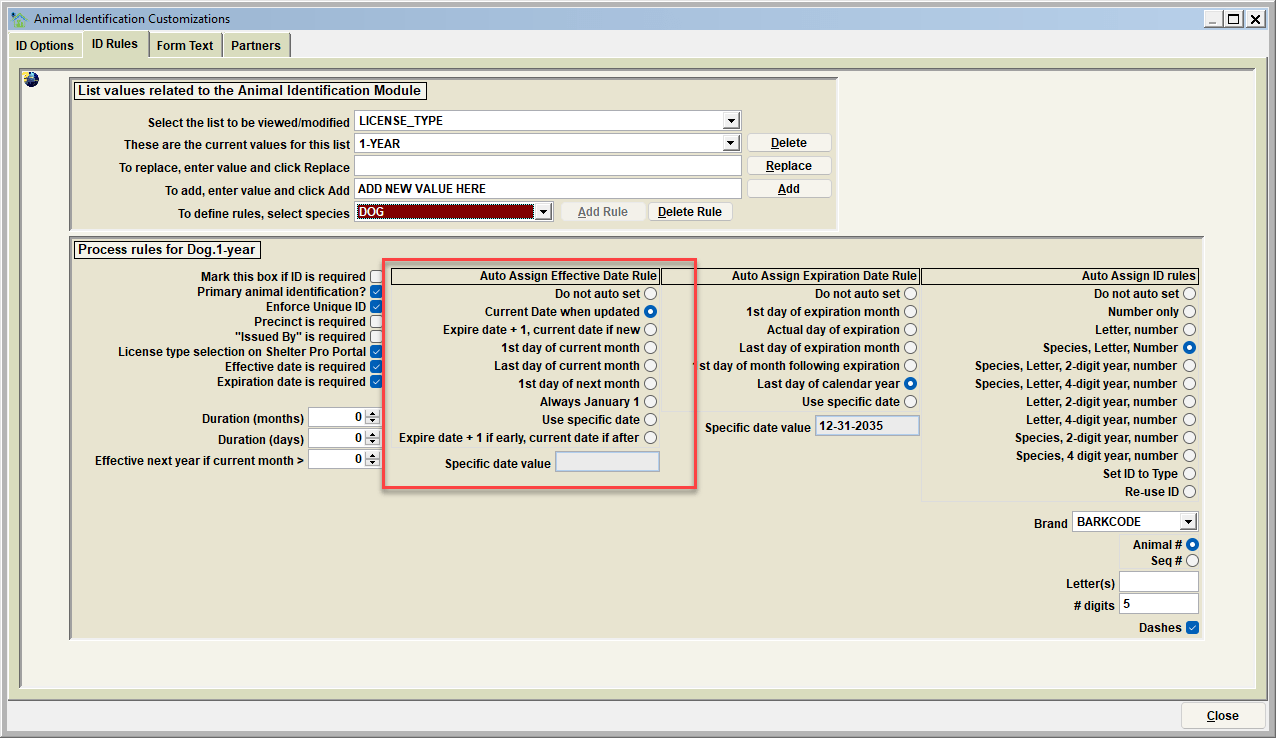
Auto Assign Effective Date Rule
| Rule | Description | |
|---|---|---|
| Do Not Auto Set | The effective date will not be set when a new ID record is created. | |
| Current Date when updated | The effective date will be set to the current date when a new ID record is created. | |
| Expire date plus 1, current date if new | If the animal has a previous ID record, the effective date will be set to the previous record's expiration date, plus 1 day. So if a previous license expires on 12/31/2023, a new License record will be set to an effective date of 1/1/2024. | |
| 1st day of current month | For example, if a new ID record is created on 1/12/2023, the effective date will be set to 1/1/2023. | |
| Last day of current month | For example, if a new ID record is created on 1/12/2023, the effective date will be set to 1/31/2023. | |
| 1st day of next month | For example, if a new ID record is created on 1/12/2023, the effective date will be set to 2/1/2023. | |
| Always January 1 | For example, if a new ID record is created on 2/15/2023, the effective date will be set to 1/1/2023 | |
| Use specific date | The effective date will always be the date specified. Enter date in the "Specific date value field." | |
| Expire date +1 if early, current date if after | This option will add on to to the set experation date if renewed early, or if renewed after the set experation date, the new experation date will be set for the current day. For Example, if a 1-year microchip license is set to expire on 1/01/2024 and a client wants to renew the 1-year license on 12/15/2023, one year would be added onto the set experation date, making the new experation date 01/01/2025. If that same client wanted to renew the same expired 1-year microchip license on 02/12/24, the new experation date for that license would be 02/12/2025. |
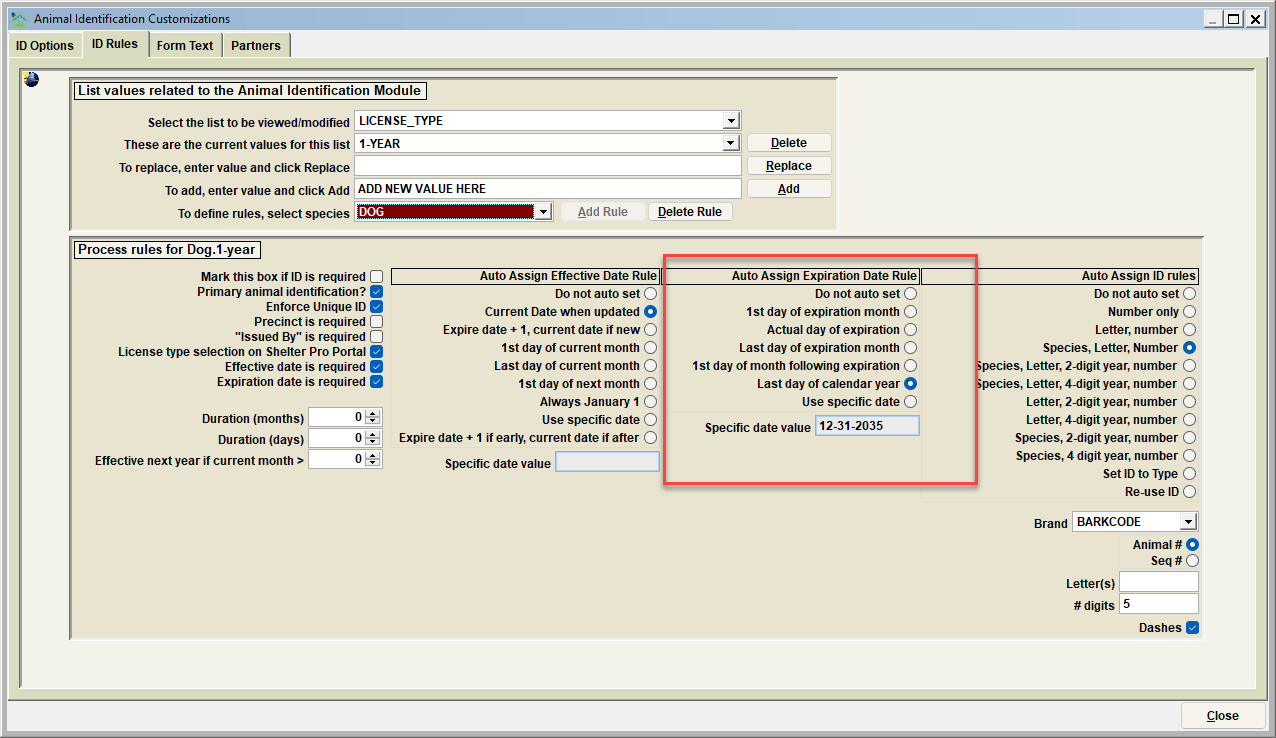
| Rule | Description |
|---|---|
| Do Not Auto Set | the effective date will not be set when a new ID record is created. |
| 1st day of expiration month | For example, if a new ID record is created on 1/12/2023, the expiration date will be set to 1/1/2024 |
| Actual Day of expiration | For example, if a new ID record is created on 1/12/2023, the expiration date will be set to 1/11/2024 |
| Last day of expiration month | For example, if a new ID record is created on 1/12/2023, the expiration date will be set to 1/31/2024 |
| 1st day of month following expiration | For example, if a new ID record is created on 1/12/2023, the expiration date will be set to 2/1/2024 |
| Last day of calendar year | For example, if a new ID record is created on 2/15/2023, the expiration date will be set to 12/31/2023. |
| Use Specific Date | The effective date will always be the date specified. Enter date in the "Specific date value field." |
| Rule | Description |
|---|---|
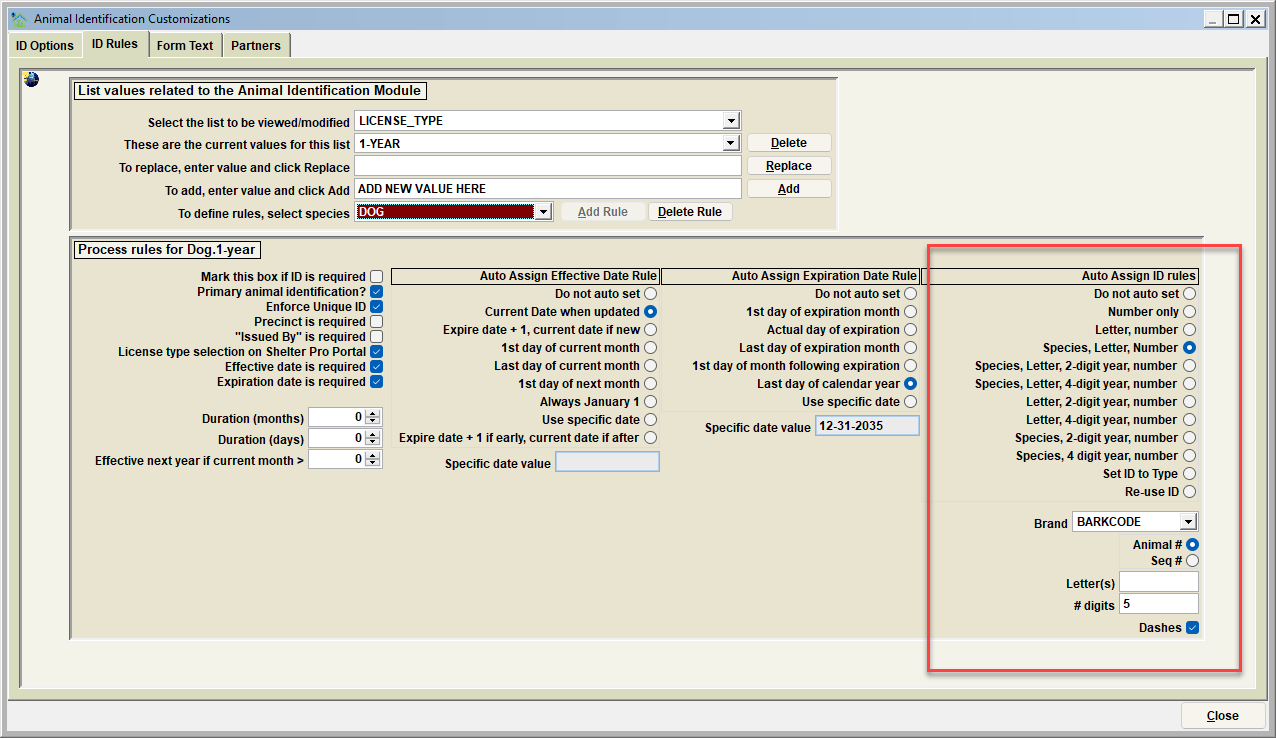
| Do not auto set | No ID is automatically assigned. If "Mark this box if ID is required" is checked, the user must enter an ID value to save an ID record. Use this if your organization has pre-engraved tags which are given to the owner with each licensed pet. |
| Number only | Automatically generate a 'number only' ID for each new record. Number is determined by Animal #/Sequential # setting. |
| Letter, Number | Automatically generate a "Letter, then number" ID for each new record. Letter is determined by the Letter(s) setting. Number is determined by Animal #/Sequential # setting. |
| Species, Letter, Number | Automatically generate a "Species, Letter, then number" ID for each new record. Species only applies the first letter of an animal's species (D for Dog, C for Cat). Letter is determined by the Letter(s) setting. Number is determined by Animal #/Sequential # setting. |
| Species, Letter, 2-digit year, Number | Automatically generate a "Species, Letter, 2-digit year, then number" ID for each new record. 2-digit year is determined by the ID effective date year. So, if an ID is effective in 2023, the 2-digit year will be 23. See other Auto-assign rules for descriptions on species, Letter, number. |
| Species, Letter, 4-digit year, Number | Automatically generate a "Species, Letter, 4-digit year, then number" ID for each new record. 4-digit year is determined by the ID effective date year. So, if an ID is effective in 2023, the 4-digit year will be 2023. See other Auto-assign rules for descriptions on species, Letter, number. |
| Letter, 2-digit year, number | Automatically generate a "Letter, 2-digit year, then number" ID for each new record. 2-digit year is determined by the ID effective date year. So, if an ID is effective in 2023, the 2-digit year will be 23. See other Auto-assign rules for descriptions on Letters and numbers. |
| letter, 4-digit year, number | Automatically generate a "Letter, 4-digit year, then number" ID for each new record. 4-digit year is determined by the ID effective date year. So, if an ID is effective in 2023, the 4-digit year will be 2023. See other Auto-assign rules for descriptions on Letters and numbers. |
| Species, 2-digit year, number | Automatically generate a "Species, 2-digit year, then number" ID for each new record. 2-digit year is determined by the ID effective date year. So, if an ID is effective in 23, the 2-digit year will be 23. See other Auto-assign rules for descriptions on Species and numbers. |
| Species, 4-digit year, number | Automatically generate a "Species, 4-digit year, then number" ID for each new record. 4-digit year is determined by the ID effective date year. So, if an ID is effective in 2023, the 4-digit year will be 23. See other Auto-assign rules for descriptions on Species and numbers. |
| Set ID to Type | Automatically set the license ID to the selected ID type. For exmaple, if the selected ID type is 1-year, the new license ID will be set as "1-year" |
| Re-use ID | This option will reuse the ID previously set. If there is no prior ID's set, a new ID must be manually enterd. |
| Brand | -------- |
| Animal Number/Sequential Number | If "Number" is included in an ID format, this determines if an Animal's ID number (which is consistent from year to year) is used, or if an incrementing sequential number is used. |
| Letter(s) | If "Letter" is included in an ID format, this is the letter(s) used. |
| Number of Digits | If "Number" is included in an ID format, this determines the number of digits that will be used. For example, setting this 5 would result in the number portion being shown as a 5-digit number (01234). |
| Dashes | Determine if dashes (-) are inserted between values within an ID. |