
 License View - Details
License View - Details
The license view shows the details of a license, and an associated vaccination record.
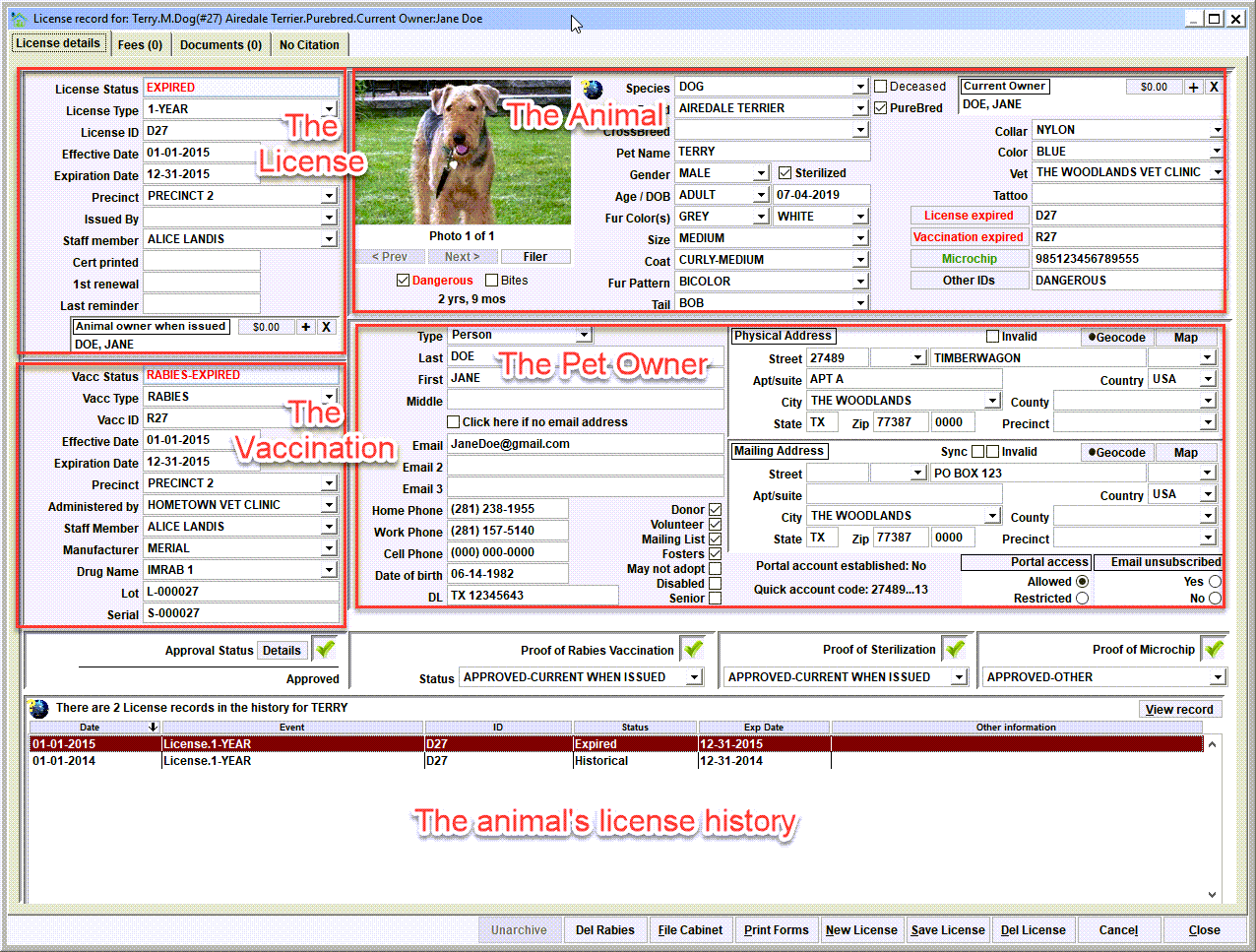
The License
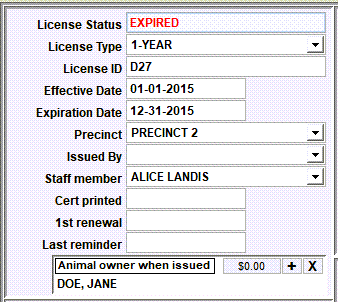
The data elements of a license include the following:
• License Status – the current status of the record.
Tip: The status values will show as:
* CURRENT - if the expiration is on or after the current date.
* EXPIRED - if the expiration is before the current date and the record is the 'most recent' for the animal.
* HISTORICAL - if the expiration date is before the current date AND the record is not the 'most recent' for the animal.
* DECEASED - if the animal's deceased indicator is checked.
* PENDING - if the license is pending a review before final approval (or rejection), or documentation is in-transit.
* REJECTED - if the license was rejected for some reason.
• License Type – the 'type' of license that was issued. Common values are 1-YEAR, 3-YEAR. However, the various license types are a customizable feature of Shelter Pro, so yours will be specific for your particular organization.
• License ID – this is typically the 'tag number' that was given to the pet owner when the license was sold.
• Effective Date and Expiration Date - the license issued date, and date of expiration.
• Precinct – the precinct under which this record is associated. This may or may not be a required element depending on your organizations specific requirements.
• Issued By – this should be left blank if your organization issued the license. The list of agencies/persons in this list is determined by the person records on the Person Database who have the 'license issuer' switched checked. This would typically represent third-party entities who sell pet licenses on behalf of your organization. A common example would be a vet's office who provided rabies vaccinations, AND who also sell county or city pet license.
• Staff Member – this is the employee who recorded the record.
• Cert Printed – this is the date that a certificate was printed. Note that this can be auto-set when a certificate is printed via PRINT FORMS or BATCH FORMS (via the Animal IDs File Cabinet).
• 1st renewal – this is the date that a renewal reminder was printed. Note that this can be auto-set when a reminder is printed via PRINT FORMS or BATCH FORMS (via the Animal IDs File Cabinet).
• Last reminder – this is the date that a late reminder was printed. Note that this can be auto-set when a reminder is printed via PRINT FORMS or BATCH FORMS (via the Animal IDs File Cabinet).
The Vaccination
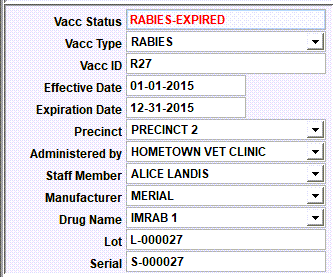
The data elements of a vaccination include the following:
• Vacc Status – the current status of the record.
Tip: The status values will show as:
* CURRENT - if the expiration is on or after the current date.
* EXPIRED - if the expiration is before the current date and the record is the 'most recent' for the animal.
* HISTORICAL - if the expiration date is before the current date AND the record is not the 'most recent' for the animal.
* DECEASED - if the animal's deceased indicator is checked.
• Vacc Type – the 'type' of vaccination that was current at the time of the posting. For pet licensing purposes, this is most common a form of rabies vaccination.
• Vacc ID – this is typically the 'rabies certificate ID' that was given to the pet owner when the rabies vaccination was provided by a vet. This data element may or may not be required depending on your organization's specific requirements. • Effective Date and Expiration Date - the date of vaccination, and date of expiration upon which a 'booster' vaccine would become due.
• Precinct – the precinct under which this record is associated. This may or may not be a required element depending on your organizations specific requirements.
• Administered By – The list of agencies/persons in this list is determined by the person records on the Person Database who have the 'Vaccination Issuer', or 'Veterinarian', or 'Vet Clinic' switch checked. This would typically represent third-party entities who provide pet vaccinations, in particular rabies vaccinations. Most often these are vets.
• Staff Member – this is the employee who recorded the record.
• Manufacturer – this is the manufacturer of the vaccine that was administered.
• Drug Name – this is the brand name of the vaccine that was administered.
• Lot and Serial – this is lot number and/or serial number of the vaccine.
• Animal Owner When Issued – this is (or was) the animal's current owner at the time the record was created.
The Pet Owner / The Animal
This is the current owner information, and animal profile information. These data elements can be updated directly on this view without having to go to the Person Database or the Animal Database.
License 'Approvals'
For most organizations, for a pet owner to receive this license certain requirements must be met by providing 'proof of...' documentation. Shelter Pro tracks the following proofs:
- Proof of rabies vaccination
- Proof of sterilization
- Proof of microchip
Depending on your organization's requirements, some of these may be 'must have', 'optional', or 'not relevant'. Each of these are defined by switches via Shelter Pro's customize features.
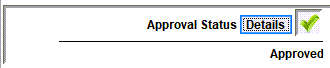

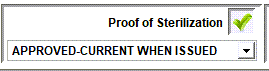
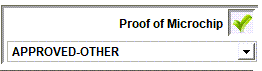
Some common examples of approval values include include the following:
• APPROVED - CURRENT WHEN ISSUED – at the time the pet owner purchased the license, there was a non-expired rabies vaccination record that met the 'proof or rabies vaccination' requirement.
• APPROVED - NOT REQUIRED – at the time the pet owner purchased the license, there was NOT a requirement for the particular proof. A common example would be that having a microchip is NOT a requirement for a license to be issued.
• APPROVED - VERIFIED – At the time the pet owner purchased the license, the staff member verified that the requirement was met. A common example would be a license sold via Shelter Pro Portal was posted, the pet owner uploaded a rabies certificate document via the website, the document was viewed under the 'DOCUMENTS' tab and the staff member verified the document was authenticate and met the requirement.
• PENDING - MAIL IN – A common example would be a license sold via Shelter Pro Portal was posted, the pet owner chose to 'mail in' required documentation, and the documentation has not yet been received and processed by the staff.
• PENDING - REVIEW READY – A common example would be a license sold via Shelter Pro Portal was posted, the pet owner uploaded required documentation via the website, and the document(s) is ready for review/approval (or rejection) and can be found under the 'DOCUMENTS' tab.
• REJECTED... – There are an assortment of 'rejection' reasons attached to this grouping. A common example would be a license sold via Shelter Pro Portal was posted, the pet owner provided required documentation, and yet the license was rejected due to some specific reason such as 'dates invalid', 'document invalid', 'document not received' etc.
Approval 'Details'
There are further details about the approval (or rejection) of the various 'proofs'. These can be viewed and modified via the 'details' button for the license record's 'approval status'.
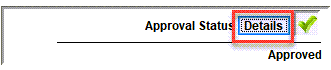
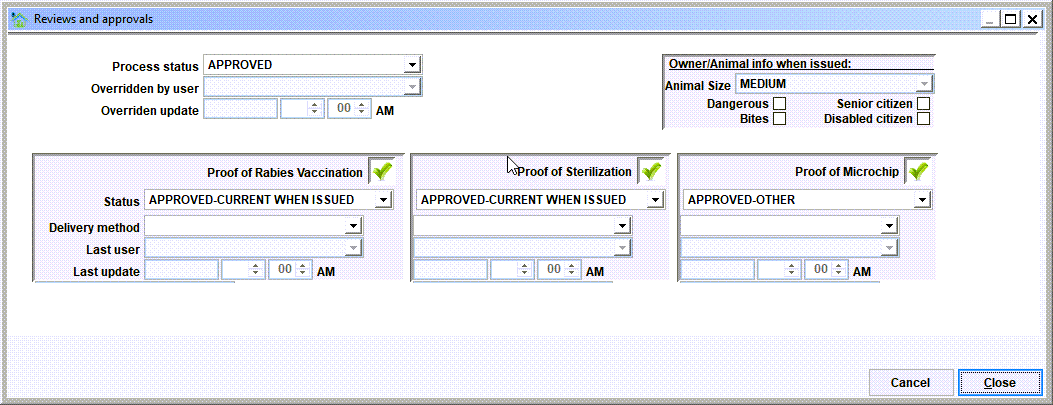
The data elements on this window include the following:
• Process Status – This is the 'overall' status for the license (approved, pending, rejected). Note that the lowest status of the 3 (rabies, sterilization, microchip) are auto-set by default. As an example, if the proofs for sterilization and microchip are 'approved', yet the proof of rabies is 'pending' or 'rejected', the overall status will be 'pending' or 'rejected' since not all of the requirements have been met.
• Overridden by user / Overridden update – If the 'overall' status is intentionally modified by a user, this is the user and date/time when the override was posted.
• Status, Delivery Method, Last User, Last Update – For each of the 3 proofs, this is the current status, delivery method of any required documentation, the staff member who set the status, and the date/time when the status was modified.
• Owner / animal info when issued – These are the profile values that were present for the animal, and the pet owner, when the license was initially created. These are read-only so that they cannot be user modified.
License History
The list at the bottom of the view will show any previous/historical records that exist for the animal.

Next Topic
Comment or report problem with topic