
 Adding a custom page
In this topic, we will demonstrate adding a new page to the site.
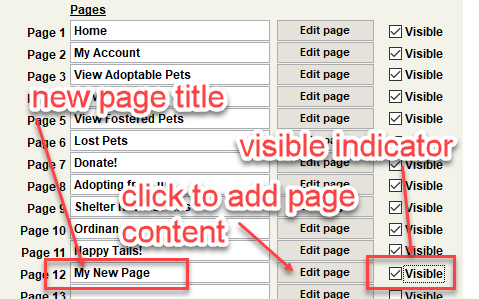
Step 1 - add the new page title and use 'Edit page'
- Enter a title for the new page
- Check the 'visible' indicator'
- Use this button to edit a page's content in Microsoft Word.
When Word is loaded with the custom page, you may notice a Word icon blinking in the Windows task bar. Click the icon to make the Word document visible on your computer.

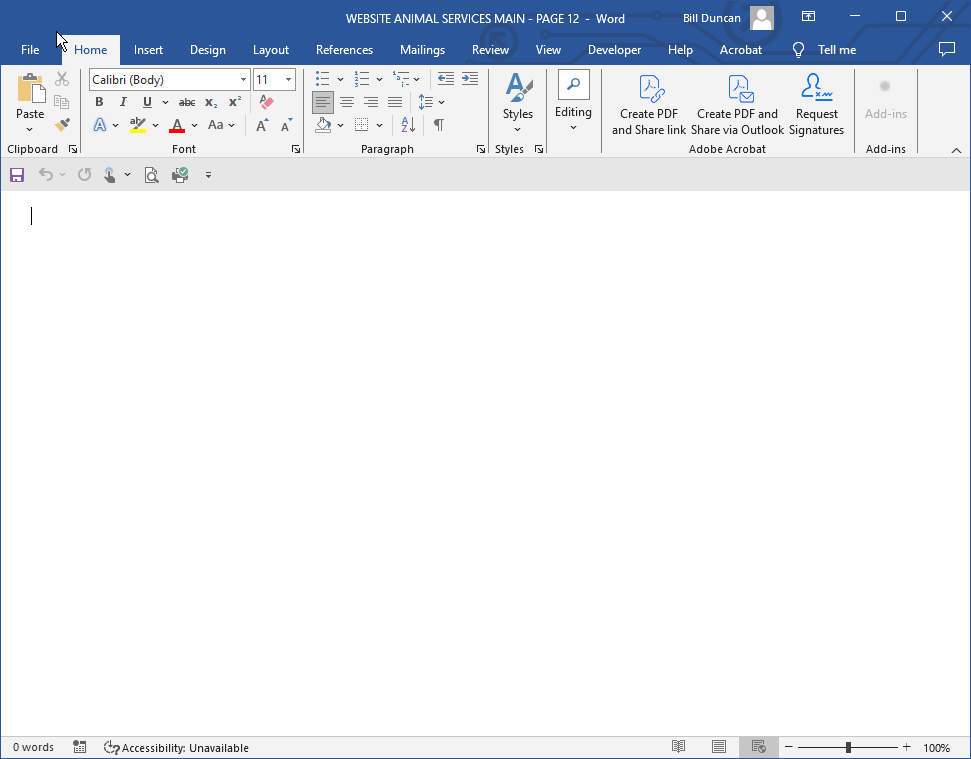
Step 2 - modify the page content
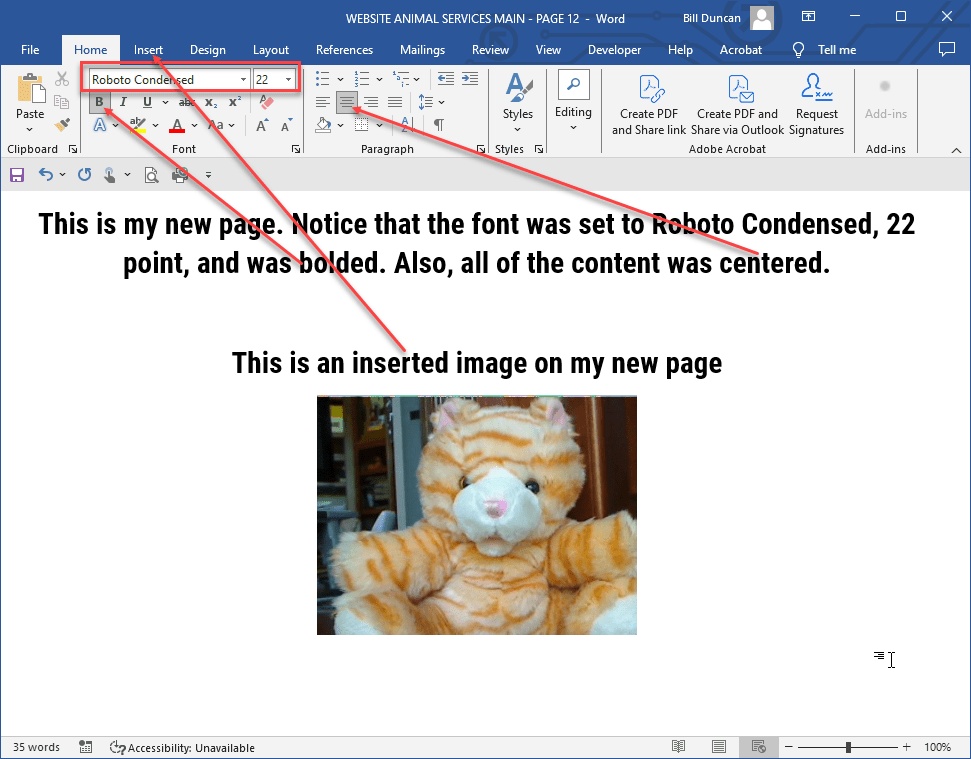
- Modify the page content as desired;
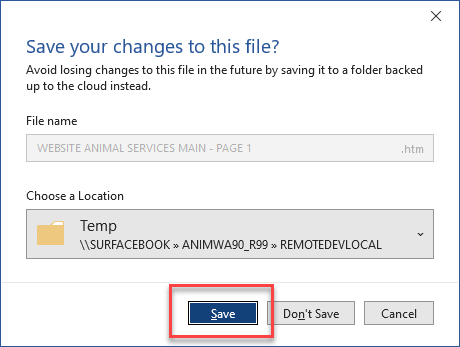
- Click the 'X' to close the Word session. Be sure to select 'Save' upon exiting the Word session.
Step 3 - publish
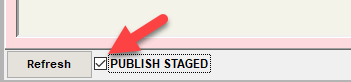
- Check the 'Publish Pending - ready to publish' check box. It will change to "Publish Staged" indicating that the next browser refresh will update the site content;
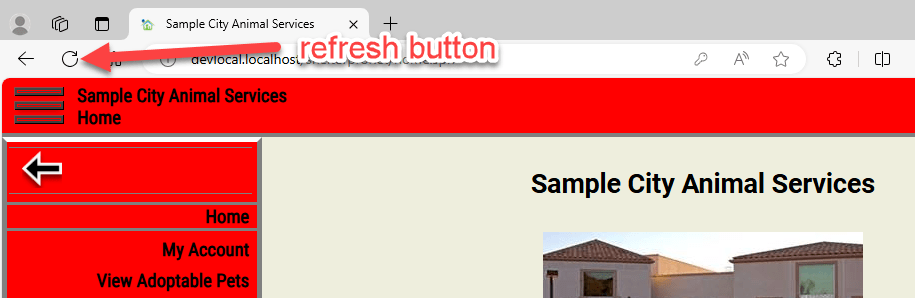
- Go to the web browser (Edge, Chrome, etc) and click the refresh button and wait while the site content is rebuilt (it might take several seconds);
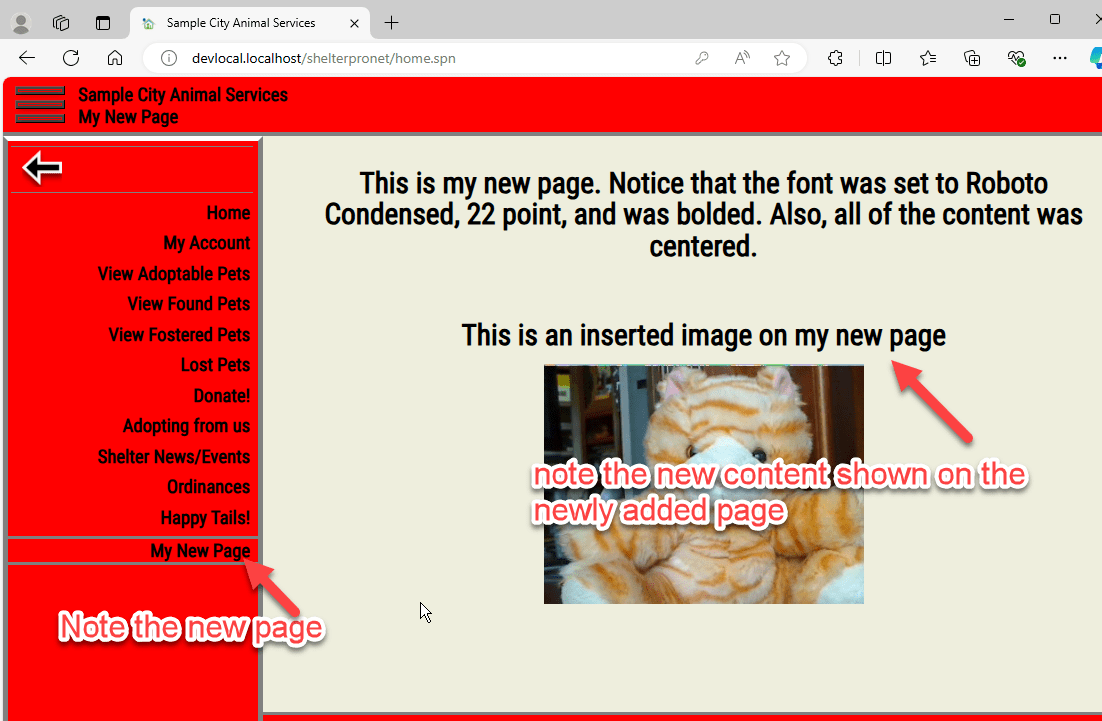
- Observe the new page.
Comment or report problem with topic