
 Linking Photos - Incidents
For this example we are using the photo viewer for an incident. From the Incident View, clicking the 'Photos' button will show this window. Note that the process of linking photos to an animal record behave in very much the same fashion. The system limits the number of photos linked to 9 per event.
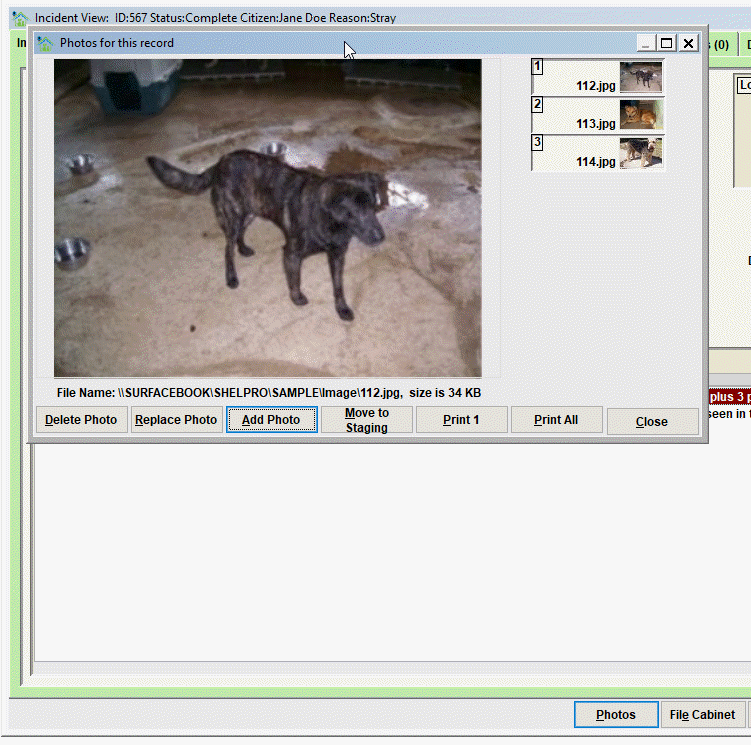
Notice the buttons:
- Delete Photo will permanently delete the currently viewed photo. The photo will not be reusable, so be sure to understand this before deleting a photo.
- Replace Photo will allow you to replace the currently viewed photo with a different photo.
- Add Photo will allow you to add a new photo to the record.
- Move to Staging should be used to move the photo file to the staging folder so that it can be re-linked to a another record, or the photos can be re-ordered (using Add Photo) once they are all Moved to Staging.
- Print 1 will print the currently viewed photo.
- Print All will print all the photos linked to the record.
- Close will exit the Photo Viewer.
Tip - An understanding of the photo staging folder and how it works with linking photos is beneficial in making your Shelter Pro easy to use. See this discussion topic for more info My Shelter Pro - Staging Folders
The thumbnails
Notice the thumbnail views of each photo. Simply click each thumbnail to show the photo in the larger photo viewer.
Comment or report problem with topic