
 Event Tabs
Event Tabs
Shelter Pro makes extensive use of tabs. The great thing about tabs is they provide quick access to data elements with very few clicks. Take a look at this screen sample which was taken from the Case View under Shelter Management. Note the tabs shown:
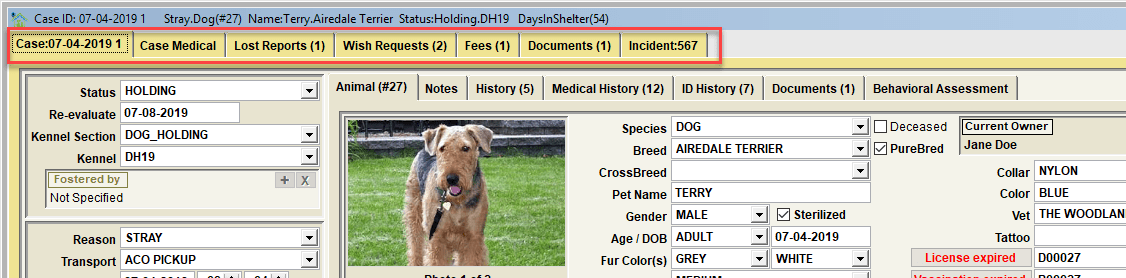
- Tab 1 - Case 07-04-2019 1 - the first tab of event screens will show the majority of the information about the record;
- Tab 2 - Case Medical - when this tab is clicked the medical records pertinent to the shelter case record will be accessible;
- Tab 3 - Lost Reports - when this tab is clicked any open lost reports will be accessible. Note how the tab shows a record count (1 in this example).
- Tab 4 - Wish Requests - when this tab is clicked any open wish list requests will be accessible. Note how the tab shows a record count (2 in this example).
- Tab 5 - Fees - when this tab is clicked any accounting module postings connected to the event record will be accessible. Note how the tab shows a count (1 in this example).
- Tab 6 - Documents - when this tab is clicked any document images connected to the event record will be accessible. Note how the tab shows a count (1 in this example).
- Tab 7 - Incident 567 - when this tab is clicked the screen will show a connected animal control incident (if an incident is connected). In this example, the 567 is the tracking number of the incident.
Did you notice the sub-tabs?
Tabs can exist within tabs. To highlight this, note the tabs shown in this shelter case example
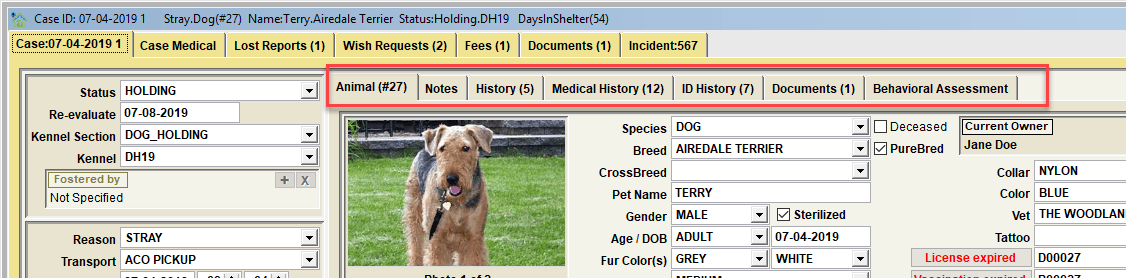
- Tab 1 - Animal #27 - the first tab shows majority of the profile information about this particular animal;
- Tab 2 - Notes - this tab would access the notes about this particular animal;
- Tab 3 - History - this tab would access the event history for this particular animal. Note how the tab shows a record count (5 in this example);
- Tab 4 - Medical History - this tab would access the medical history for this particular animal. Note how the tab shows a record count (12 in this example);
- Tab 5 - ID History - this tab would access the animal identification module history for this particular animal. Note how the tab shows a record count (12 in this example);
- Tab 6 - Documents - this tab would access any document images for this particular animal. Note how the tab shows a record count (1 in this example);
- Tab 7 - Behavioral Assessment - this tab would access the behavioral assessment for this particular animal.
Event Tabs - list counts
The tabs can show the number of records that exist in a list for the tab. Take a look at this screen sample which was taken from an Incident view under Animal Control. Note the tabs shown::

- Owner History(16) - the list under Owner History contain 16 historical records.
- Animals Owned(5) - the list of Animals Owned by the owner will show 5 pets.
- Animal Involved(1) - there is 1 animal connected as an 'Animal Involved' in the incident.
- Location History(3) - the list of other historical incidents at the location will show 3 priors.
- Citation(1) - there is 1 citation that was issued due to this incident.
- Fees(0) - there are no fees posted as a result of this incident.
- Documents(0) - there are no document images posted for this incident.
Next Topic
Comment or report problem with topic