
 Person Record - Accounting
Person Record - Accounting
The Accounting tab shows the historical accounting module postings for an individual.
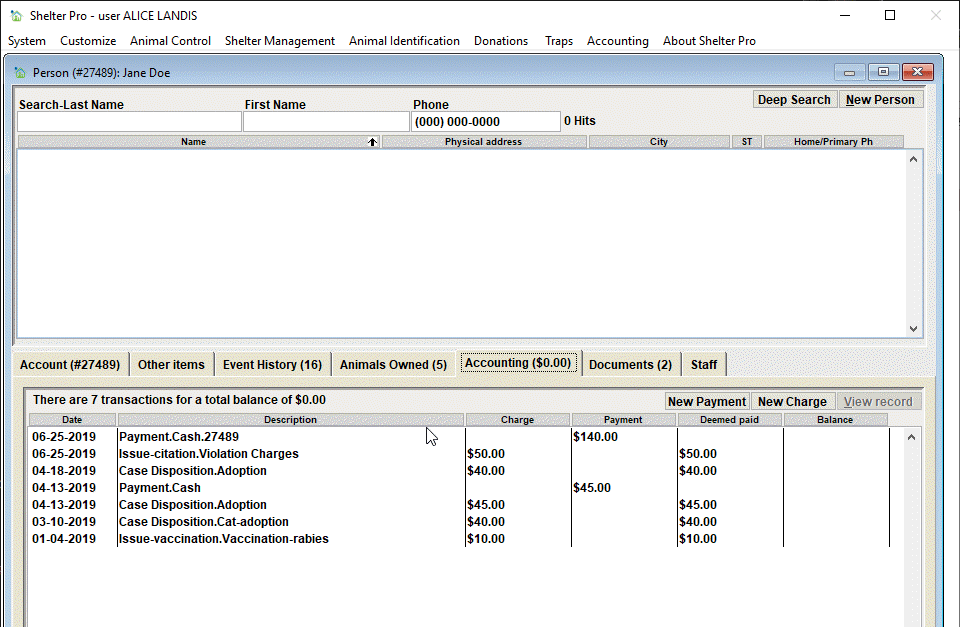
The list
Each charge or payment with which a person is linked with will appear. The accounting activity will be sorted chronologically, beginning with the most recent activity. Also, when there are payments and charges listed on the same date, any payments will show before any charges because the payments were entered after the charges were made, so the payments are seen as the most recent activity.
We can see Jane's history of charges and payments in the sample above. The columns in this view are:
- Date - Date of posting.
- Description - A short description of why the posting occurred.
- Charge column - If the posting was a charge, an amount will show in this column.
- Payment column - If the posting was a payment, an amount will show in this column.
- Deemed Paid - If the posting was a charge and the charge is either fully or partially paid, an amount will show in this column.
- Balance column - If the posting was a charge and the charge is not paid in full, the unpaid balance will show in this column. If the posting was a payment and the payment has not been fully applied against charges, an amount will show in this column.
Tip - If more detail is required, you can view the underlying event by clicking the View Record button, or double-click the entry.
The 'New Charge' button
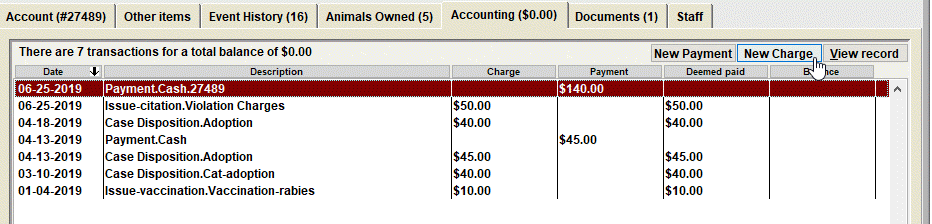
From this screen, you can manually add a charge to the selected person's account. Note that clicking this button will cause the Charge window to open where you will be able to enter the detailed information about the charge and save the record. When you click Close on the Charge window, you will return to this window and the newly added charge will show in the list.
The 'New Payment' button
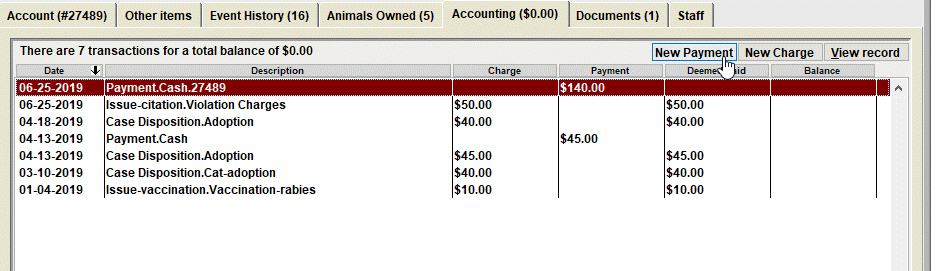
From this screen, you can manually add a payment to the selected person's account. Note that clicking this button will cause the Payment window to open where you will be able to enter the detailed information about the payment and save the record. When you click Close on the Payment window, you will return to this window and the newly added payment will show in the list.
Next Topic
Comment or report problem with topic