
 Printing Person Mailing Labels
Printing Person Mailing Labels
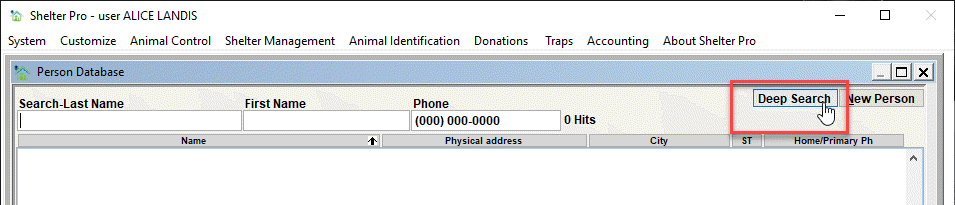
If needed, you can print mailing labels for a targeted group of persons on your person database. To do this, use the Person Database Deep Search. You can access this from the Person Database by clicking the Deep Search button.
On the Person Database Deep Search window, enter the search criteria to get the persons to receive mailing labels. In this example, we will use the mailing list. Notice the search results finds 4 person records.
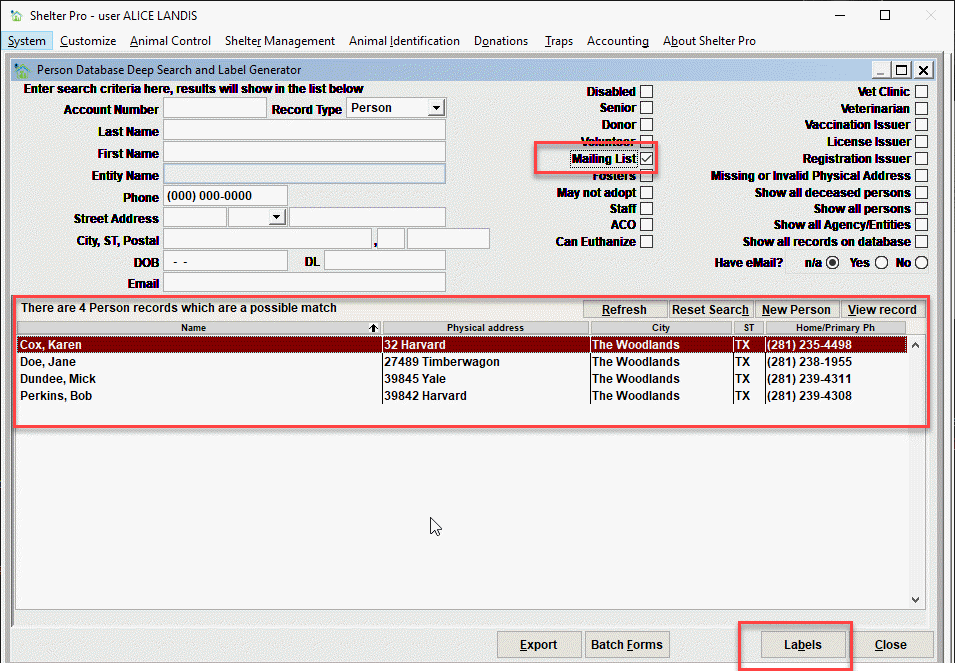
The Labels button
Notice the Labels button in the screen sample above. When the button is clicked you will see the Label Printing window.
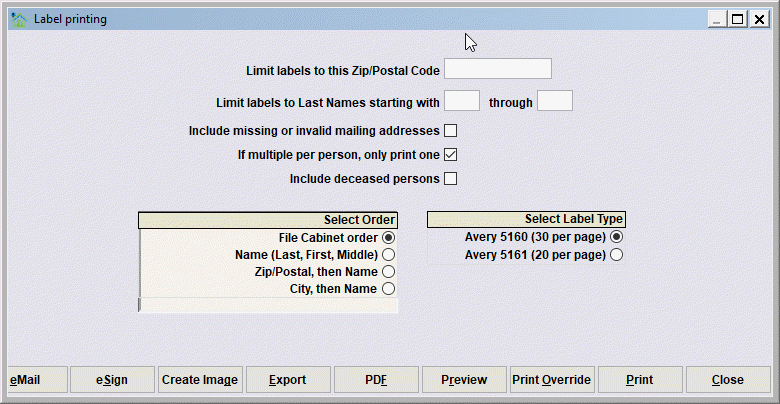
On this next screen, you can further limit the labels to be printed. You'll notice that you can limit the labels to:
- A specific Zip/Postal code
- A last name range (for example, entering A through C would result in labels only being printed for persons with last names which start with A, B, or C.
- Include persons with addresses which have been marked as invalid if desired.
- Also, if the same person record would be in your selected group multiple times, you can limit the labels to only print one label for the person.
You can select the label sort order. By default, the order will match the order from the Person Database Deep Search (this is the File Cabinet order in our example above). However, you may re-sort the order by:
- Last Name, First Name
- Zip/Postal code
- City, Last Name, First Name
You must also select the type of labels to be printed. The choices here are:
- 30 per page (3 across, 10 down)
- 20 per page (2 across, 10 down)
Finally, you can Preview the labels prior to print. Select Print to send the labels to your printer. Be sure to have your label paper ready.
Next Topic
Comment or report problem with topic