
 Bite Case File Cabinet
Bite Case File Cabinet
For an overview of File Cabinets and their usage, click File Cabinets
To lookup existing Bite Records, from the main menu select Shelter Management, and then select Bite Case File Cabinet. You will use the search features to locate and work with previously created bite records.
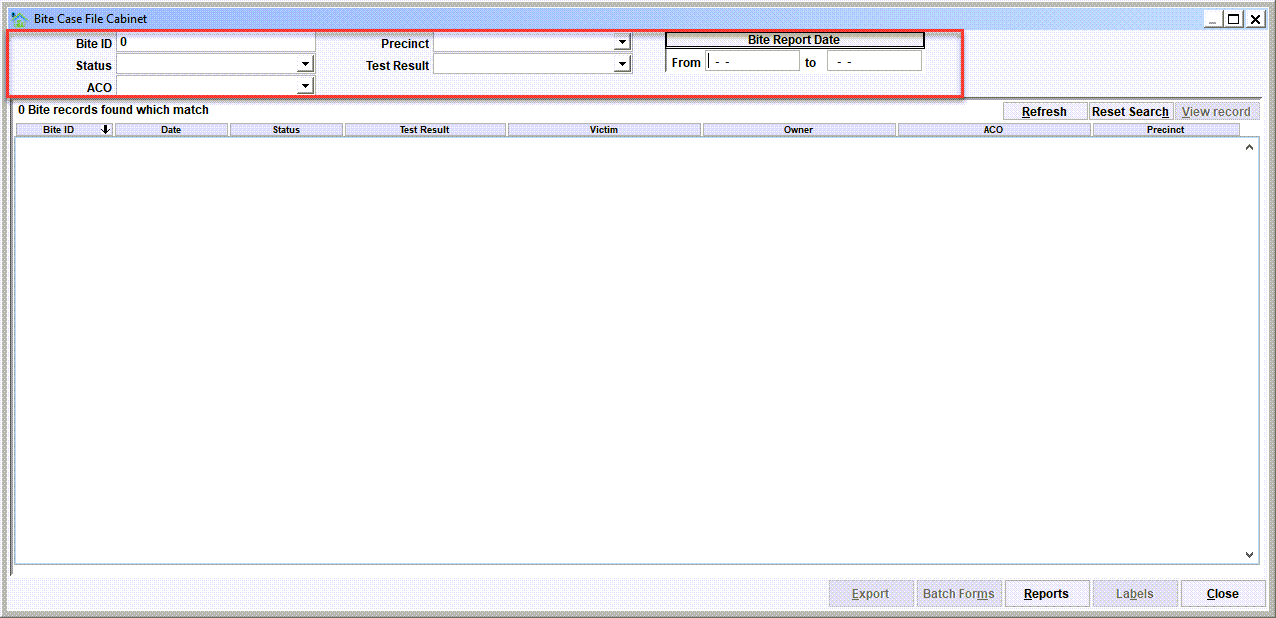
Bite records can be searched and retrieved by specifying an almost unlimited number of combinations of search filters.
- A unique Bite ID that is assigned to the bite record
- A Status (Open, Closed, Sent to Lab, Quarantine, etc)
- An ACO assigned to the bite case
- Precinct
- A Test Result (Negative, Positive, etc)
- Limiting to the Bite Report Date Range
Results list
The results of a search, including the count, will be shown the results list.
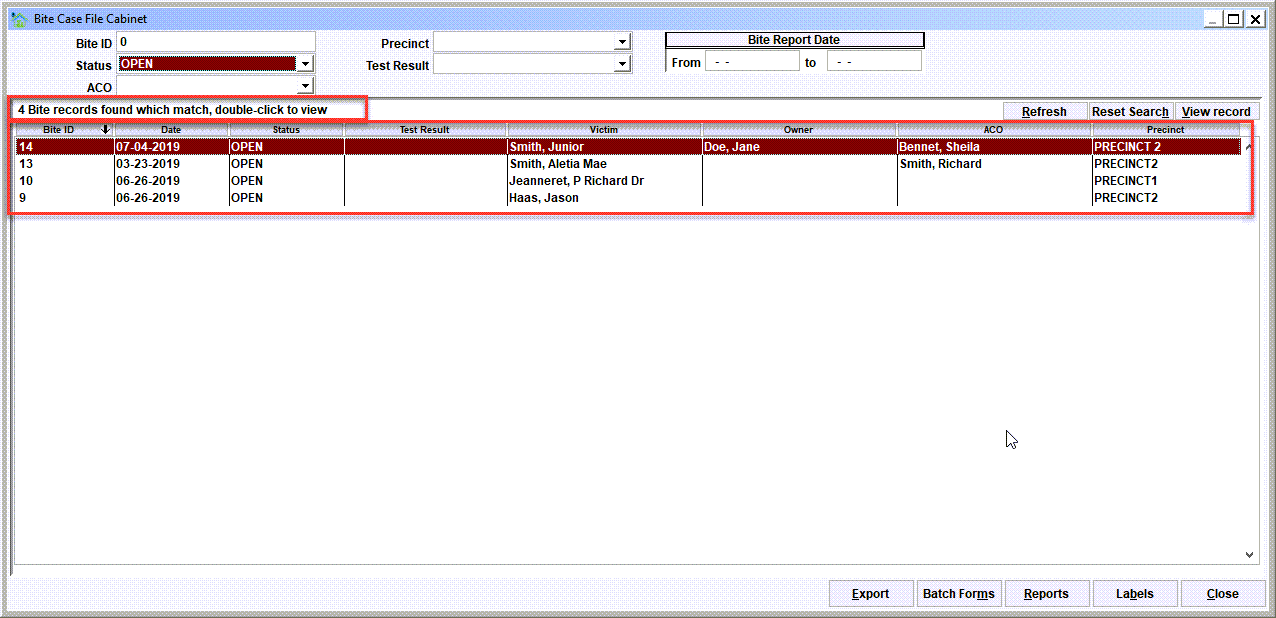
To view a bite record, select the record in the list then click view record. Or double-click the record in the list. The bite case will be loaded and will pop up on the screen.
Tip - sorting the results by a column
Notice that the results list can be resorted by any of the columns by clicking the column header.
Resetting the filters
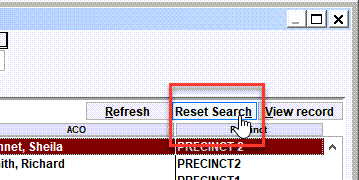
Use Reset Search to clear the search filters back to empty values. You can then re-enter search filters to start a new search.
Batch Forms
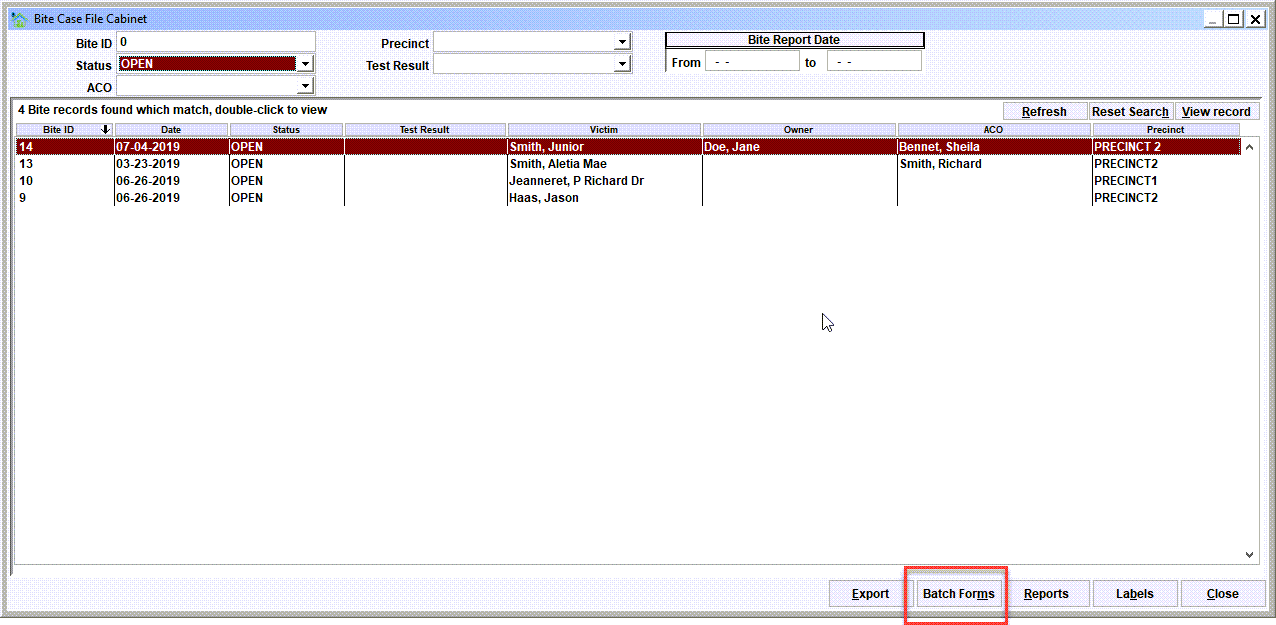
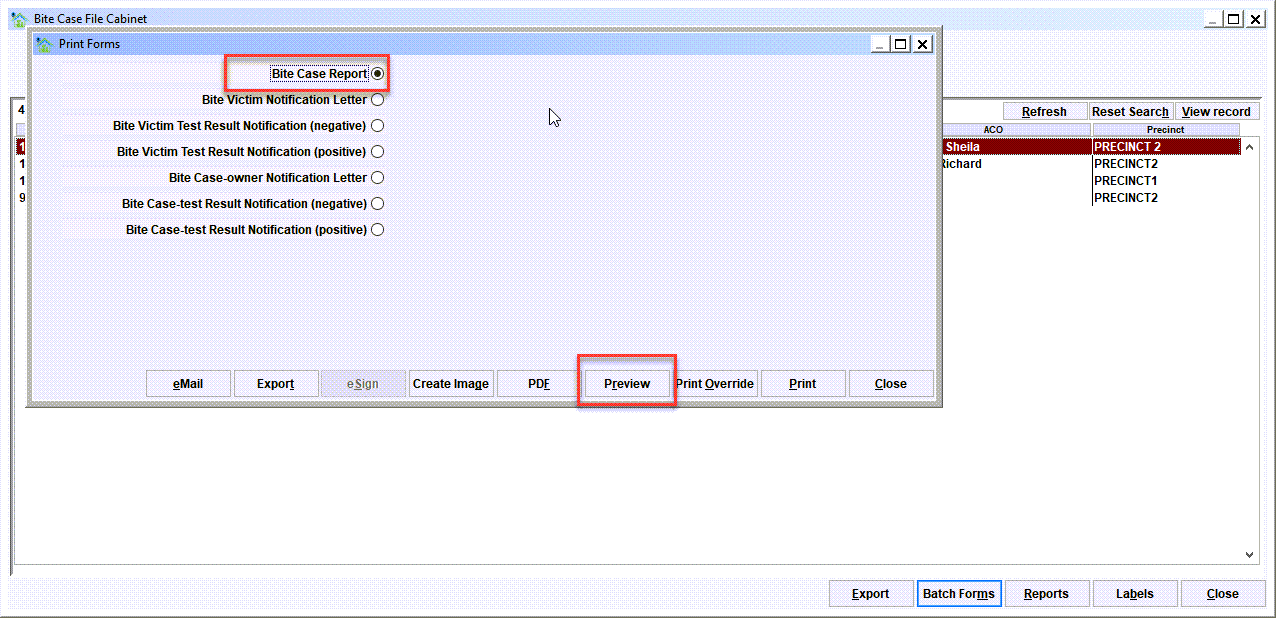
Batch Forms will allow you to print a group of forms, one for each record in the results list, and in the order of the results list. In our example, using the Batch Forms function would result in printing 4 forms. When the button is clicked, you will select the form(s) to be printed, and click the Print (or Preview) button.
Here is a sample of the Case Forms menu. The selected forms will print in the same order seen in the File Cabinet view.
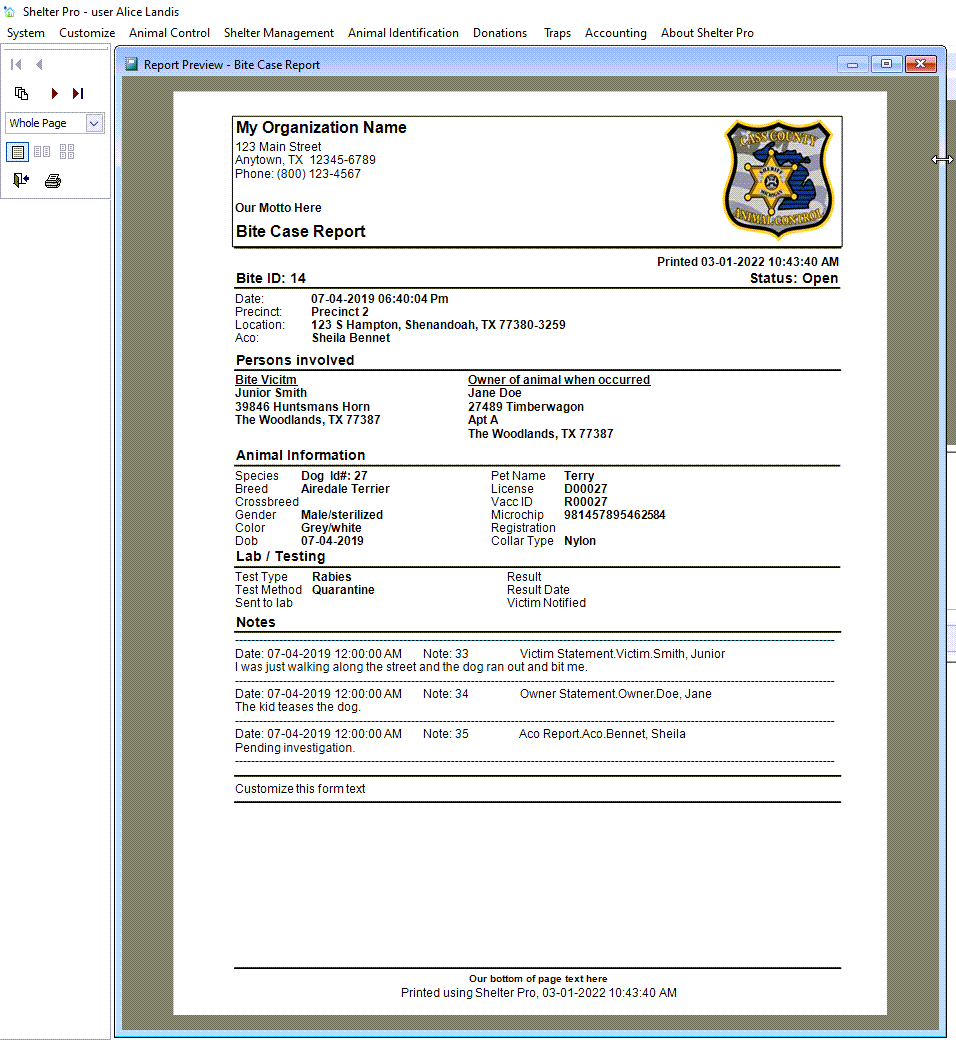
Here is a preview of the bite case reports. Note that there would be 4 individual forms in this match.
Next Topic:
Comment or report problem with topic