
 Customize Photos/Documents
Customize Photos/Documents
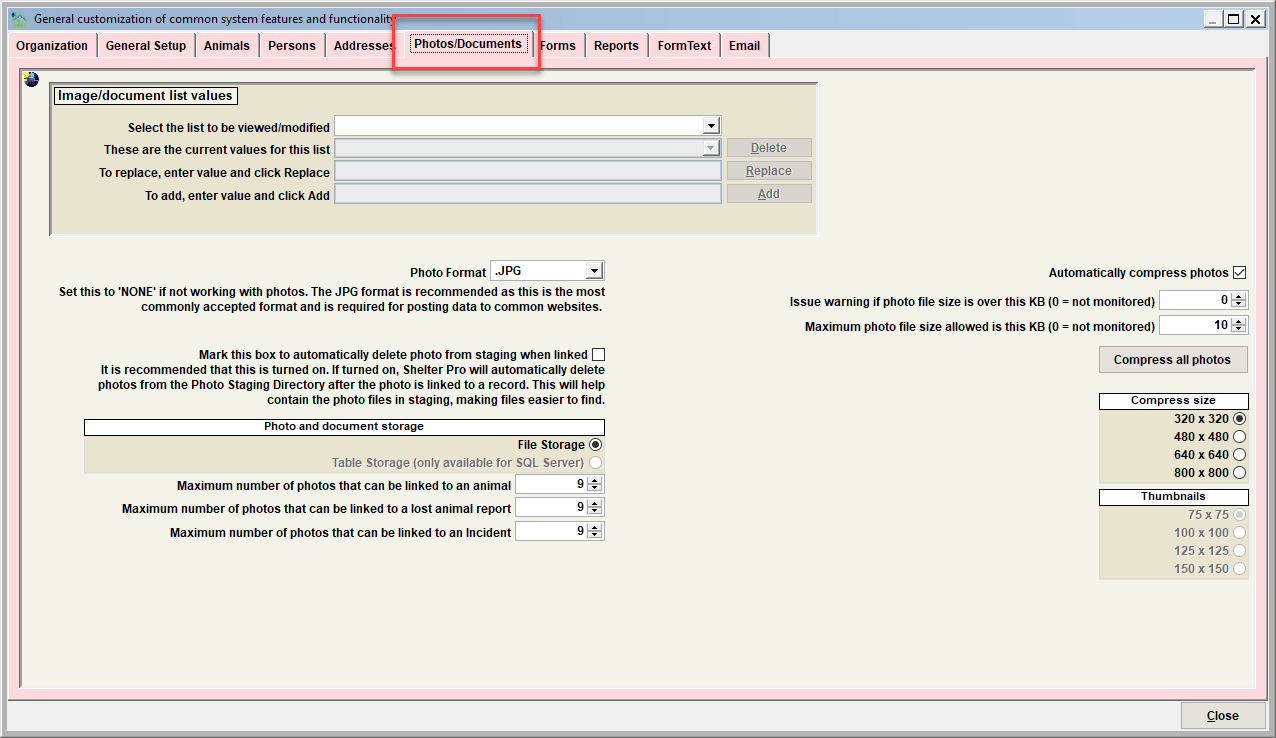
Image/document list values
Use this feature to modify predefined image/document types which can be assigned to an image or document. Values can be added, deleted, and/or replaced. Follow the instructions on the screen to complete each of these functions. Bill was here
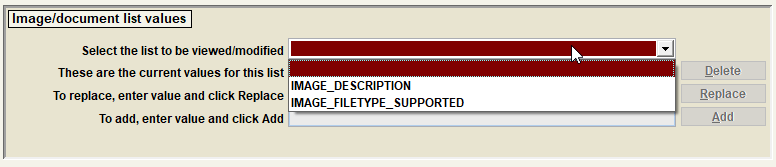
The specific lists which can be modified include:
| List to be modified | Description |
|---|---|
| IMAGE_DESCRIPTION | Predefined image descriptions which can be selected when an image or document is attached to a record. |
| IMAGE_FILETYPE_SUPPORTED | By default, supported/allowed image file types include: 1. pictures (jpg, bmp, gif, tif, png) 2. documents (pdf, doc, docx, txt, log, htm, html) 3. MS Word (doc, docx, dot, dotx, rtf) 4. MS Excel (xls, xlsx) 5. Comma separated values (csv) If there are other file types your organization allows to become attached documents, add them to the IMAGE_FILETYPE_SUPPORTED list. If a user attempts to attach a file that is not among the various allowed file types above, the attachment of the file will be rejected. |
Tip - Some list values in Shelter Pro cannot be altered in any way. Protecting certain values is necessary because if they were to be altered, basic functionality within Shelter Pro would be jeopardized. A simple example of this is the species value of DOG. If you attempt to change the protected value, you will see a message stating:
Important: this value is reserved, it cannot be deleted or replaced.
Visualizing the various lists on the corresponding record.
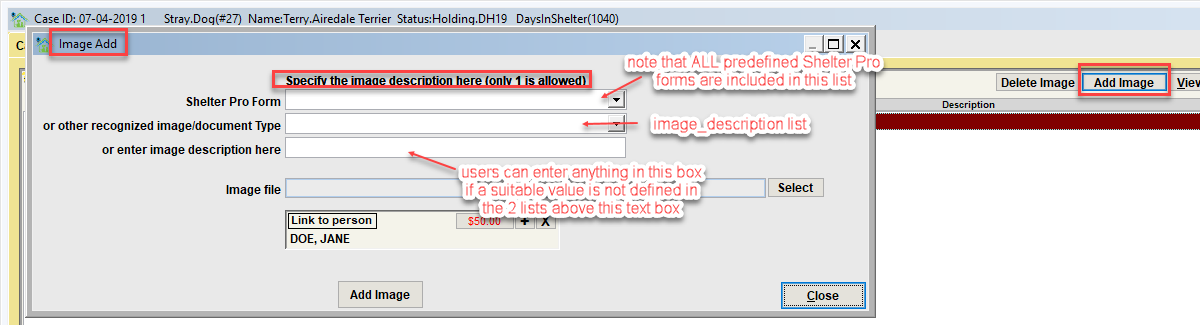
Photo Format
One of the items to be determined is which type of photo file format your camera will place on your computer system. There are many different formats. Common formats include .GIF, .JPG, and .BMP files. There are many others also. JPGs are the most common format. If you are planning to send data (including photos) to other systems, JPG is recommended. Other systems would include posting your sheltered animals to common websites, such as PetFinder.com and Adopt-A-Pet.com.
Mark this box to automatically delete photo from staging when linked
After taking several pictures, it would be very easy for the Photo Staging Directory to accumulate many photos. As the directory becomes larger and larger, it will become very cumbersome to scroll through the photo files to find a desired animal picture and get it linked. For ease and speed of use, it would be preferred to keep the Photo Staging Directory as empty as possible. Fewer files kept in the Photo Staging Directory are fewer files to scan when trying to find a picture to link.
To help with this, consider turning on this switch. When a new photo is linked, it is copied to the Shelter Pro database. Effectively there are now two copies of the photo - one in staging, and one in the database. When this setting is turned on, the staging copy will be deleted once the photo is linked in the database.
This also reduces the risk that a single photo is linked to multiple animals on the Shelter Pro database. Keep in mind that once a picture is linked to an animal, the photo can be moved back to staging. This can be useful when a picture is incorrectly linked to the wrong animal.
The Photo Staging directory is set by each individual user. So as users are defined in Shelter Pro, each user should specify their own photo staging directory using the “My Shelter Pro" screen under the menu item "System".
Photo and document storage
Shelter Pro supports photo storage using one of two methods:
- File Storage – photos are stored as files (like jpgs);
- Table Storage (recommended) – photos are stored on a database ‘table’. This option is only available for sql server customers.
A couple of considerations on the storage method:
- For customers using Shelter Pro Portal, table storage is required. This is necessary as the portal has access to the sql server database, but not the file system. In order for the portal to show photos such as animal photos of shelter case pets, the table storage method is required.
- Table storage will consume more sql server database storage. Typically this is not an issue. However for customers running sql server express, this option will cause the database size to be larger as images are consuming space. Fortunately, the 'image compression' option goes a long way toward minimizing space consumption.
Maximum number of photos that can be linked to…
Set these values in order to limit the number of photos which can be linked to a record.
Automatically compress images
This switch will cause Shelter Pro to compress photo files to a manageable size when the photo is attached to a record. Compression is desirable because photo file sizes can be quite large depending on the ‘pixel / image’ size setting on common digital cameras. Compressing photos has desirable results, including: • Less space is used on the database and server; • System and network performance is improved.
Issue warning if photo file size is over this size (KB)
This value will cause a warning to be issued when attempting to link a photo file that exceeds this specified size limit. Setting this value to zero will cause the warning check to be ignored. This setting is only utilized if 'automatically compress photos' is disabled.
Maximum photo file size allowed is this KB
This value determines the targeted compression size when automatically compressing photo images as they are attached to a Shelter Pro database. As a general rule, setting this value in the range of 20 to 30 will provide a very efficient photo file size while not sacrificing image quality.
Note that if this value is set to zero, no compression will occur, even if the 'automatically compress photos' option is enabled.
Compress all photos
This button will trigger a process within Shelter Pro which will scan all connected images (photos and pdfs) and compress them.
Note that 32-bit GhostScript must be installed for pdf compression. See this link for more information on downloading/installing 32-bit GhostScript.
Next Topic
Comment or report problem with topic