
 Geocoding
Geocoding
What is Geocoding?
Geocoding is a process used to verify and self-correct an address. Consider that a typical address consists of multiple components. These include:
- A street number, direction, street name, and street type;
- A city, state, and zip/postal code;
- A county;
- A Precinct.
When an address is entered, it is possible to enter an incorrect value for any of these data elements, or to leave one or more of the elements blank/missing. When the address is geocoded, the geocoding 'service' will return the correct values for the invalid/missing data element(s). In turn, Shelter Pro has the ability to self-correct the value(s) resulting in a more reliable address.
Enabling geocoding
When geocoding is enabled, a 'Geocode' button will be visible with an address. The button can be clicked which will cause the address to be geocoded and self-corrected.
See Customize Addresses for more information on enabling geocoding within Shelter Pro.
An example of geocoding an address
Consider this example of an address that has not been geocoded. A few things to note about this address:
- The street name is misspelled, it should be BLUE FOX;
- The city value is incorrect, it should be SPRING;
- The county is not specified;
- The small dot next to the Geocode button is black, which indicates the address has not been geocoded.

After clicking the Geocode button, notice the corrections that were made to the same address.

- The street name is corrected to BLUE FOX;
- The street type is now set to ROAD;
- The city name is corrected to SPRING;
- The county is now specified to be MONTGOMERY;
- The small dot next to the Geocode button is green, which indicates the address has been geocoded.
Viewing the results of geocoding
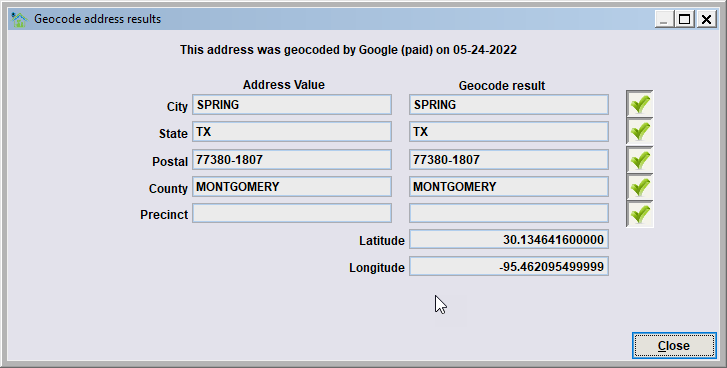
After an address has been geocoded, the geocoding results are preserved with the address. Clicking the geocode button will show the comparisons between the address' current values, and the geocode results. If the address values exactly match the geocode results the flags will all be green indicating a 100% match.
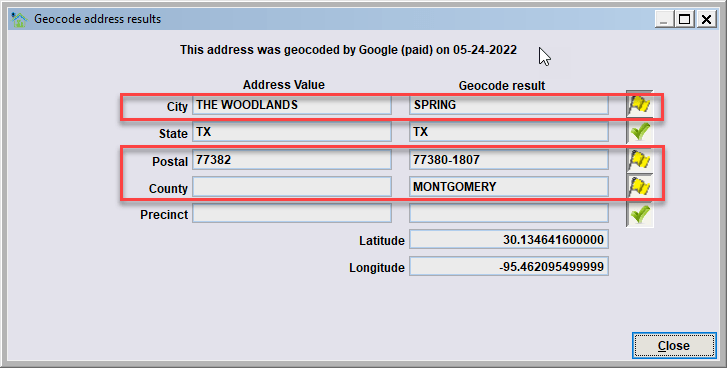
If a user were to alter the address values so that they no longer matched the geocode results, the geocode button would be yellow. This indicates the address has been geocoded, but the address values no longer match the geocode values.

Next Topic
Comment or report problem with topic