
 Customize Addresses
Customize Addresses
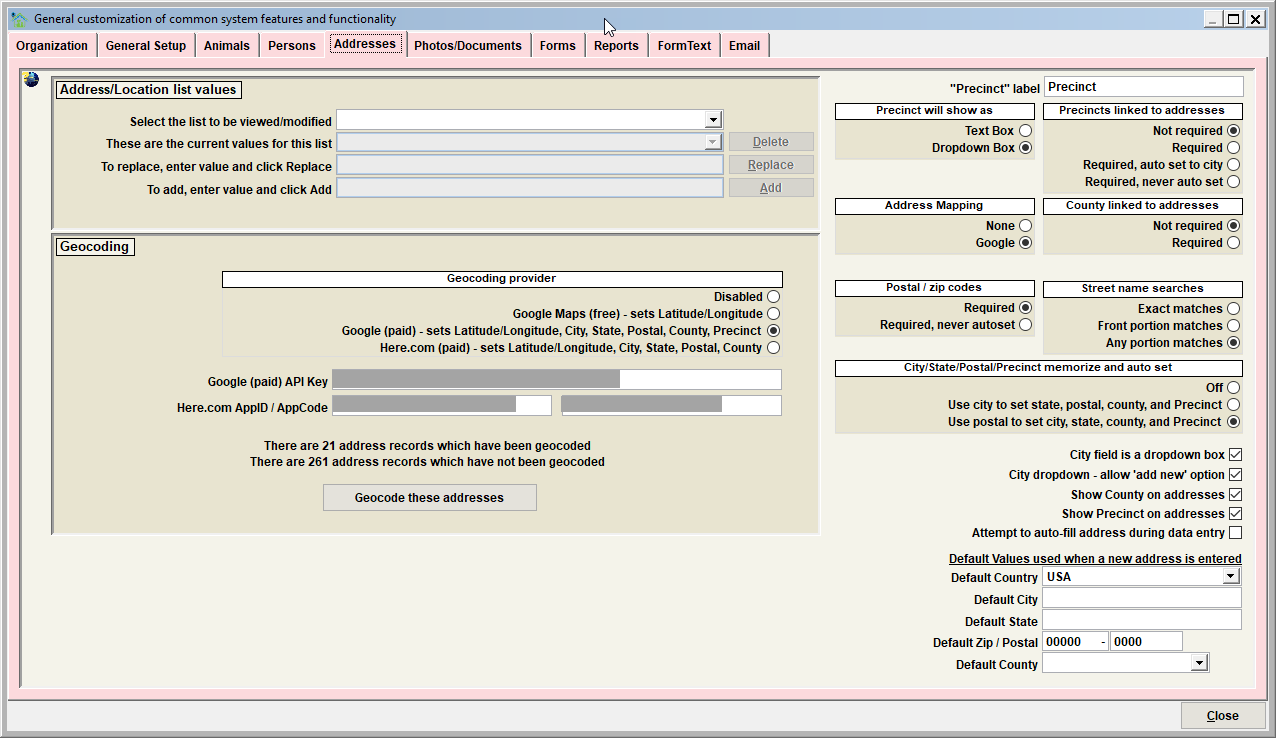
The Addresses tab defines the settings which control the posting of an address record. This includes:
- Person addresses (physical and mailing)
- Location addresses associated with an animal control incident
- Found location address associated with a shelter case/pet
Address/Location List Values
Use this feature to modify address descriptor values. Values can be added, deleted, and/or replaced. Follow the instructions on the screen to complete each of these functions.
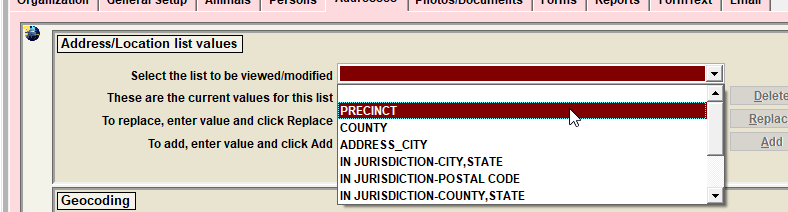
The specific lists which can be modified include:
| List to be modified | Description |
|---|---|
| PRECINCT | Precinct selections throughout ALL of Shelter Pro (not just addresses). Note that this list is modified here as an address can be associated to your organization's custom precinct values. Further, event records (incidents, citations, bite cases, shelter cases, licenses, etc.) can also be associated with your organization's custom precinct values. |
| COUNTY | County selections when an addresses is posted. This would be defined so that an address can be linked with its governing county. |
| ADDRESS_CITY | City selections when an addresses is posted. Note that defining an ADDRESS_CITY list assumes that the 'City field is a dropdown' option is enabled. This would be defined so that an address can be linked with its governing city. |
| IN JURISDICTION-CITY,STATE | By defining this list to include ALL of your organization's city/state combinations that are to be considered 'in jurisdiction', the system logic can automatically determine if an address is considered 'out of jurisdiction' when a given city/state is not in this list. Values should be entered like this - HOUSTON, TX or SPRING, TX for all potential in jurisdiction values. If a particular address was posted as OKLAHOMA CITY, OK then the address would automatically show as 'out of jurisdiction'. |
| IN JURISDICTION-POSTAL CODE | By defining this list to include ALL of your organization's postal codes (zip codes) that are to be considered 'in jurisdiction', the system logic can automatically determine if an address is considered 'out of jurisdiction' when a given postal code is not in this list. Values should be entered like this - 77380 or 77381 for all potential in jurisdiction values. If a particular address was posted with a postal code 75498, then the address would automatically show as 'out of jurisdiction'. |
| IN JURISDICTION-COUNTY,STATE | By defining this list to include ALL of your organization's county/state combinations that are to be considered 'in jurisdiction', the system logic can automatically determine if an address is considered 'out of jurisdiction' when a given county/state is not in this list. Values should be entered like this - MONTGOMERY, TX or HARRIS, TX for all potential in jurisdiction values. If a particular address was posted with a county of MONTGOMERY, AL then the address would automatically show as 'out of jurisdiction' due to the state not being a match. |
| ADDRESS_STREET_DIR | Address street direction selections for an address |
| ADDRESS_STREET_TYPE | Address street type selections for an address |
| ADDRESS_STATES_USA | Address state selections for an address. These are the typical 2-character state codes/abbreviations for the various states in the United States. |
| ADDRESS_STATES_CAN | Address state selections for an address. These are the typical 2-character province codes/abbreviations for the various states in Canada. |
Tip - Some list values in Shelter Pro cannot be altered in any way. Protecting certain values is necessary because if they were to be altered, basic functionality within Shelter Pro would be jeopardized. A simple example of this is the species value of DOG. If you attempt to change the protected value, you will see a message stating:
Important: this value is reserved, it cannot be deleted or replaced.
Visualizing the various lists on the corresponding record.

Visualizing an 'out of jurisdiction' address example.
Noting our discussion above about the various 'IN JURISDICTION...' lists, consider an example where we had defined MONTGOMERY, TX as a valid 'IN JURISDICTION-COUNTY,STATE', and this was the only defined value for that list. Observe what occurs when we have a person at an address that is not MONTGOMERY, TX, but rather is MONTGOMERY, AL. Notice how the address is automatically flagged as 'Jurisdiction-Out of County'.

Precinct Label
This defines the "Precinct tag" on windows, forms, reports. This field should be set to the terminology your facility uses to describe a Precinct (Municipality, Zone, Township, City, District, etc).
Precinct will show as
This switch determines the data entry method of precinct data.
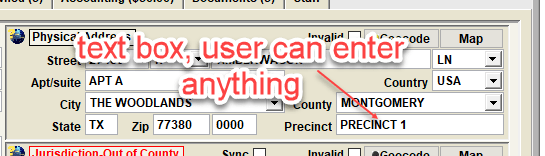
- Text box will allow users to type in a precinct value.
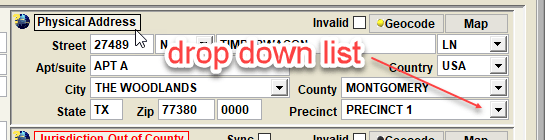
- Dropdown box (recommended) will allow users to select a precinct from a pre-defined/customized list of your organizations recognized and allowed precincts.
Precincts linked to addresses
This switch determines how the requirements for setting the precinct that is associated with an addresses' city value.
- Not Required - a precinct value is optional (aka not required) when an address is posted.
- Required - a precinct value must be specified when an address is posted. Note that by default, a precinct value of 'OUT OF JURISDICTION' will be select-able so that users can post an address that not a defined/known precinct.
- Required, auto set to city - precinct is required, and the precinct value will be automatically synced to the address city value. This can be used when your organization's precincts follow city jurisdictions.
- Required, never auto set - precinct is required, however the user must specify the precinct. This is used when your organization's precincts have a higher degree of variability and some knowledge of precinct settings is required of the user.
Address mapping
This switch allows a call to automatically display a map for a specified address.
- None = this feature is disabled.
- Google = calls Google maps to display the map (note – internet connection with access to GOOGLE maps is required.
County linked to addresses
This switch determines the requirement for setting a county that is associated with an addresses.
- Not Required - a county value is optional (aka not required) when an address is posted.
- Required - a county value must be specified when an address is posted.
Street name searches
This switch determines how last name searches are completed when searching the person database. The options are:
- Exact matches - searches will return results which are exact matches to the specified search item. For example, when looking for an street address of MAIN, the search will only return addresses with a street name that is exactly MAIN. An address with a street name of MAINLAND would not be returned.
- Front portion matches - searches will return results which are exact and near matches on the data entered. For example, when looking for an street address of MAIN, the search will return addresses with a street name that is starts with MAIN. Any address with a street name of MAIN or MAINLAND would be returned.
- Any portion matches - searches will return results which are exact, near, and approximate matches on the data entered. For example, when looking for an street address of MAIN, the search will return addresses which contains MAIN at any position in the name. Any address with a street name of MAIN, or MAINLAND, or PORTMAINLAND would be returned.
City, State, Postal, Precinct memorize and autoset
This switch determines if city/state/postal/precinct combinations will be memorized and how these values will be autoset using memorized combinations. The options are:
- Off - combination values are not memorized or autoset.
- Use city to set state, postal. county, and precinct - when a city value is specified, a lookup will occur for a memorized combination. If a hit is found for the city, the state, postal, county, and precinct will be autoset to the memorized values for the city. If a hit is not found, when the address is saved, the specified state, postal, county, and precinct will be memorized and used the next time an address is entered with the same city value.
- Use postal to set city, state, county, and precinct - when a postal value is specified, a lookup will occur for a memorized combination. If a hit is found for the postal code, the city, state, county, and precinct will be autoset to the memorized values for the postal code. If a hit is not found, when the address is saved, the specified city,state, county, and precinct will be memorized and used the next time an address is entered with the same postal value.
City field is a dropdown box
This switch will cause and address city to be a dropdown box rather than a text box. When this switch is turned on, you must add the ADDRESS_CITY values to the dropdown list so that values will be shown and can be selected.
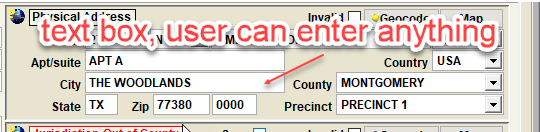
This is a sample of a Person address when the city is a Dropdown switch is unchecked. Using this option, the City must be manually typed each time. The disadvantages are that it takes more time to type an address, and entry errors are more likely, particularly misspellings. However, any city value can be entered in the text box.
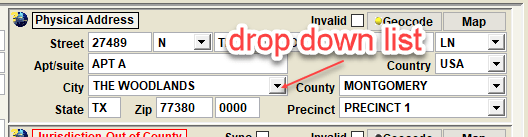
This is a sample of an address when the city is a Dropdown switch is checked (recommended). The advantage is faster data entry, and this reduces the possibility of entry errors, particularly misspellings. The only disadvantage to this approach is that users cannot enter an address for any cities not included in the list, unless the 'City dropdown, allow 'add new' option' is enabled.
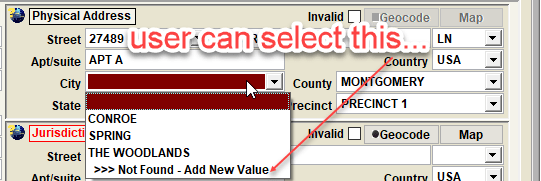
City dropdown – allow ‘add new’ option
This switch will allow for a city value to be dynamically added during processing when a person’s city address is not found in the dropdown list. This is a valuable feature that can be used when a person resides in a city outside of your organization’s locality, and the list does not contain all possible values that could occur for a person’s address.
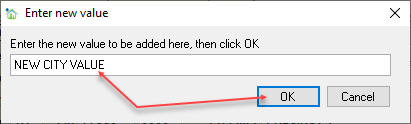
The user can then enter a new city value, then click OK.
The result
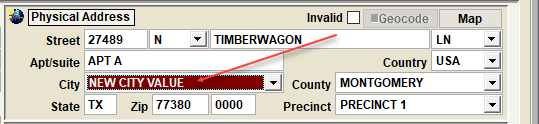
Show county on addresses
This switch enables or disables the ability to specify a county associated with an address. When disabled, the county field is hidden and cannot be specified for an address.
Show precinct on addresses
This switch enables or disables the ability to specify a precinct associated with an address. When disabled, the precinct field is hidden and cannot be specified for an address.
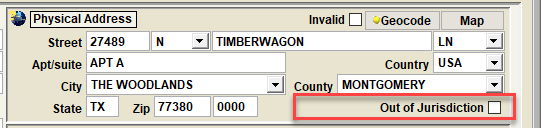
Since the precinct field is also used to specify the system value 'OUT OF JURISDICTION', when disabled an 'Out of Jurisdiction' check box will be visible. This is necessary so that a user can specify an address to be designated as out of jurisdiction.
Attempt to auto-fill address during data entry
This switch will cause an address 'lookup' to occur while entering an address. For example, when a street number and street name are entered, the system will look for a matching entry on the address table. If a single match is found, the rest of the address (city, state, postal, county, precinct) will autoset to existing address record.
Default values used when a new address is added
- Default Country value - Automatically set an address country code when an address is entered.
- Default City value - Automatically set an address city value when an address is entered.
- Default State value - Automatically set an address state code value when an address is entered.
- Default Zip code - Automatically set the address postal code (zip code) when an address is entered.
Geocoding
See Geocoding if you're needing an overview of what geocoding does with address records.
To enable address geocoding functionality, choose the geocoding option that will be used.
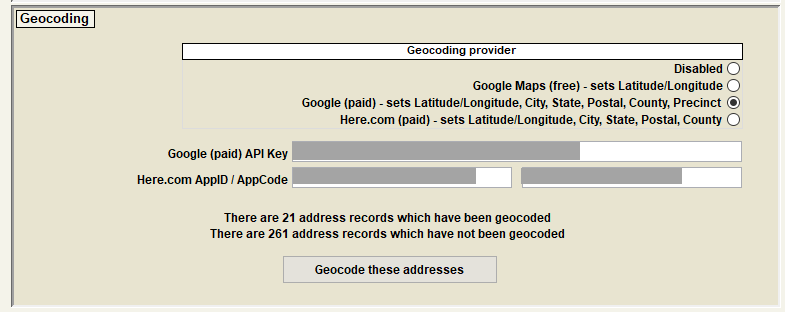
Geocoding provider
- Disabled - Geocoding will not be applied to address records.
- Google Maps (free) - this is a free service that will only set the latitude/longitude values of an address.
- Google (paid) - this is a fee-based service provided by Google that will auto-correct addresses using Google's geocode database. The service provides the functionality to validate/auto-correct an address' city, state, postal, county, precinct (in some cases), and latitude/longitude.
- Here.com (paid) - this is a fee-based service provided by Here.com that will auto-correct addresses using Here.com's geocode database. The service provides the functionality to validate/auto-correct an address' city, state, postal, county, and latitude/longitude.
About the 'paid' services
The 'paid' services provided by Google and Here.com both require that your organization have an 'account'. Once the account is established, both services will provide an account code to utilize their geocoding functionality (Google provides an "API Key", Here provides an App ID/App code).
For more information on getting setup with Google, including getting an API Key, visit this webpage:
Google Maps - Get Started
For more information on getting setup with Here.com, visit this webpage:
Here.com - geocoding
Geocode these addresses
IMPORTANT - Using this feature will potentially cost money!
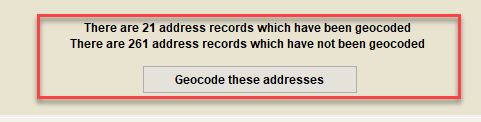
Note in our example that there are 261 address records which have not been geocoded. By clicking the 'Geocode these addresses' button, the 261 addresses would each be geocoded (including automatically cleansing the data content). Note this would feature would require that your organization has an account with either Google or Here.com. Using this feature will cause the account with these providers to be charged with each geocoded address.
Next Topic
Comment or report problem with topic