
 Case View - Case Tab
Case View - Case Tab
This a sample of a Case View for a sheltered animal.
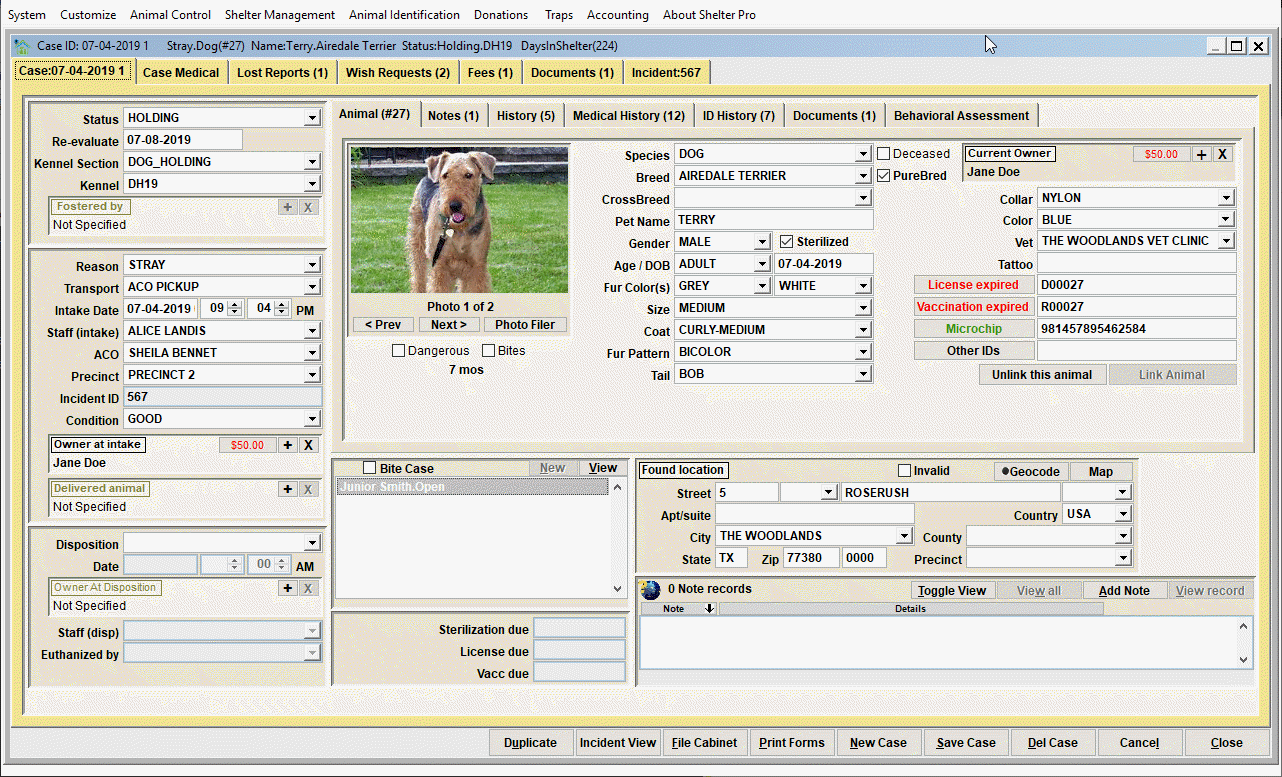
Much of the behavior of the Case View can be customized by accessing Customize/Shelter Management from the main menu. See link below:
Shelter Management Customizations
Activity Buttons

These buttons include:
• Duplicate (aka 'Clone') will create a new case and animal which mirrors the currently viewed case and animal. This function is intended to be used to quickly create cases where a group of animals are nearly identical. An example would be when impounding a litter of puppies or kittens.
• Incident View will show a linked Incident when a Case was created from an Animal Control Incident record. This button will not be visible if the Animal Control module is not being used. The button will be disabled if there is no linked Incident.
• File Cabinet accesses the Case File Cabinet window. Use this to search/retrieve previously recorded Cases.
• Print Forms displays the forms menu.
• New Case creates a new case in the Shelter Module. This is used to create an intake of an animal. After clicking this button, enter the Case information and click the Save button to post the newly created case.
• Save Case will validate the data entered and point out any errors. If there are no validation conditions, the record will be posted to the database.
• Del Case removes the current Case being viewed/updated from the database. Be careful when deleting a record as a deleted record cannot be recovered.
• Cancel will undo any changes made since the Case was last saved.
• Close will exit the Case View.
Case ID

Each Case will be automatically assigned a Case ID. This ID will consist of the current date followed by an incremental number, beginning with the number one.
Also note that you can assign your own Case identification using the Shelter ID/Kennel field. This can be used for just about anything. Common examples would include using temporary tag IDs, a shelter-assigned pet name, or some other function which may already be in place.
Case Details
The Case Details tab shows the primary data related to a shelter animal.

Current Status, Intake Details, and Disposition Details
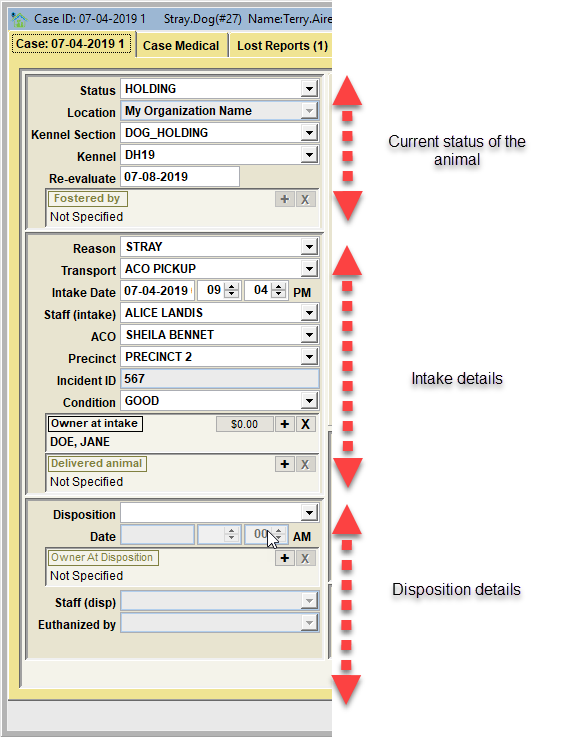
Current Status of the animal
This grouping of data elements store the current status of the animal within the shelter. Note that if the animal has a disposition (adopted, return to owner, etc.), the status will be the same as the disposition and will not be modifiable.
• Current Status – this is the status of the animal attached to the shelter case.
• Shelter ID/Kennel – this is a 'kennel assignment' where the animal is located in facility.
• Re-evaluate – this is a date, usually a future date, where an animal is due for re-evaluation by shelter staff. Note that animals due for re-evaluation can be listed on a report (see SHELTER MANAGEMENT/REPORTS-CASES) or can be found using the 'status' selection on the Case File Cabinet.
• Fostered by (or being held by) – if the animal's status is fostered, you can link the foster citizen here. Note that this can also be the 'being held by' person if the status is set to 'HOLDING-CITIZEN HOME' (i.e. what is commonly known as a FOUND pet that is being kept by the finder).
Intake Details
This grouping of data elements store the intake values for the animal.
• Reason – the reason the animal is in the shelter.
• Transport – how the animal arrived.
• Intake Date – the date and time the animal arrived.
• Staff (intake) – the staff member who performed the intake.
• ACO – if an Animal Control Officer is involved, they can be selected here.
• Precinct – categorizes a case from where it originated. Note that reports can be sorted/grouped by Precinct.
• Incident ID – this would be the Animal Control Officer’s report identifier
• Condition – this is the physical condition of the animal upon intake.
• Owner At Intake – if known, this is the owner at the time of intake. Note that this person will print on the owner surrender form.
• ACO pickup/Delivered Animal – this is the non-owner person (citizen) who brought the animal to the shelter. Note that this person will print on the non-owner turn-in form.
Disposition Details
This grouping of data elements store the values that reflect how the animal left the shelter. Note that providing a disposition is what causes a case record to be treated as 'closed'. If no disposition is specified, the case record is treated as 'open'.
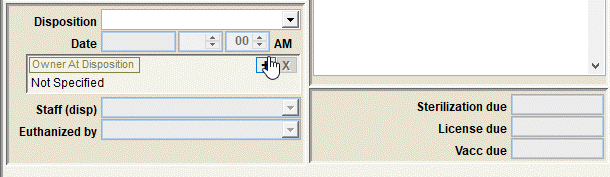
• Disposition - the disposition method (Adopted, Returned to Owner, Euthanized, etc)
• Disp Date - the date/time the animal left the shelter
• Euthanized By - if the animal is euthanized, this is the lab tech that performed the procedure.
• Staff (Disp) - the staff member who performed the disposition.
• Owner At Disposition - if appropriate, the person or entity who took possession of the animal at disposition. Common examples would include return to owner, adoption, rescue, etc.
• Spay/Neuter proof due - if performing follow-ups on proof of spay/neuter (for animals who were not marked as sterilized at time of disposition), then enter the follow-up date here.
• License Proof Due - if performing follow-ups on proof of licensing, enter the follow-up date here.
• Vaccination Proof Due - if performing follow-ups on proof of vaccination, enter the follow-up date here.
Bite Cases
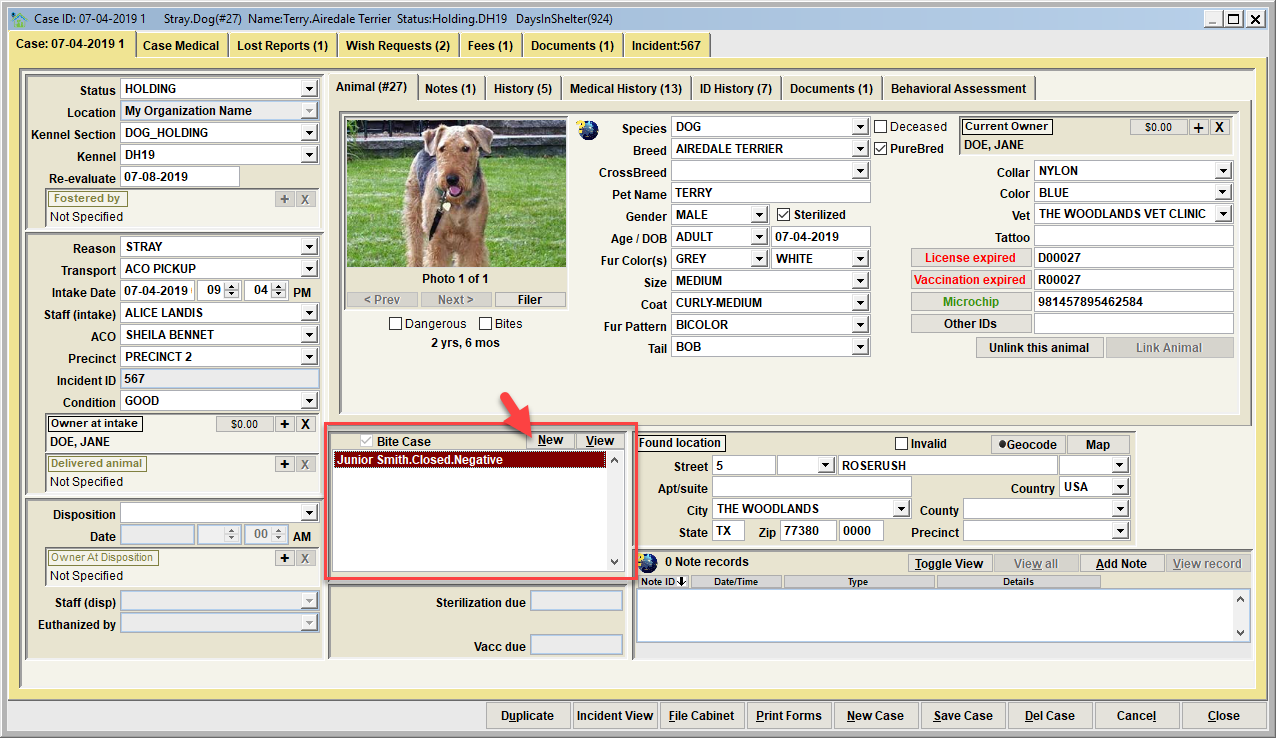
When a shelter animal has been involved in a bite case, click the 'Bite Case' indicator to enable the ability to add a 'new bite' case record that will be automatically attached to the shelter case record. The bite case record will store the various data elements that are relevant to the bite case such as the victim, the health checks, the location where the animal encountered the victim, the notes/narratives about the bite case, etc.
In this example, the case view is showing the animal was involved in a bite case (the bite case indicator is checked), the bite investigation is 'open', and the bite victim was Junior Smith.
Found Location
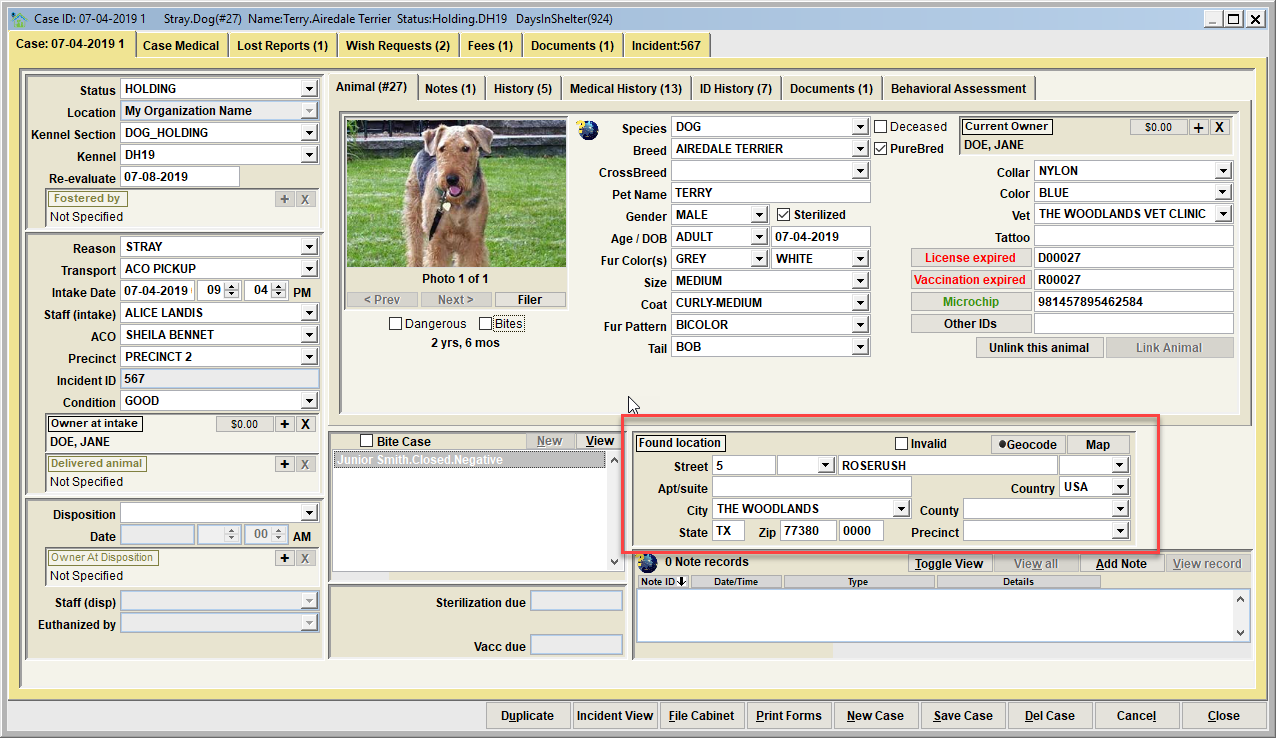
When appropriate for the case, the found location is used to store the address where the animal was found.
Notes

Notes are optional. The are used to provide deeper details about the particular record entered on the database. With notes you'll find there are varying note types which are specific to any particular event type.
Case Notes are used for notations that are only relevant to the case record for the animal. Be aware that there are animal notes also. Animal notes will be accessible from any record where the animal is linked (such as an animal control incident record, or a lost animal report, etc.). However any case notes that are added will only be accessible from the shelter case record where the animal was attached.
For a case, some common note types would include 'Case Notes', 'Follow-up Notes', 'Owner Statement', etc. There may be additional note types defined on your Shelter Pro as note types can be extended using Shelter Pro's Customize features.This list can be modified via the customizable dropdown list NOTE_TYPE_CASE.
Click on the Add Note button to add a new note, or View Note to open, review, edit an existing note. The View All will present all notes combined in chronological order for ease reading the full narrative on one screen. The Toggle View button will cause the content in the list to be changed to a different display setting.
For an overview of notes in Shelter Pro, click Notes and Narratives
Next Topic:
Comment or report problem with topic