
 Trap File Cabinet
Traps File Cabinet
For an overview of File Cabinets and their usage, click File Cabinets
To look up existing Traps Module records, from the main menu, select Traps, and then select Trap File Cabinet. You will use the Trap File Cabinet search features to locate and work with previously created records.
.png)
The trap records can be searched and retrieved by specifying only outstanding traps, all trap records, only returned traps and only overdue traps.
- A unique ID that is assigned to a record. Note that this searches all the ID types (licenses, vaccinations, microchips, other IDs) unless the search also limits the results to a specific category.
Results list
The results of a search, including the count, will be shown in the results list.
.png)
To view a trap record, select the record in the list, then click view record. Or double-click the record in the list. The trap record will be loaded and will pop up on the screen.
Tip - sorting the results by a column
Notice that the results list can be resorted by any of the columns by clicking the column header.
Resetting the filters
Use Reset Search to clear the search filters back to empty values. You can then re-enter search filters to start a new search.
Batch Forms
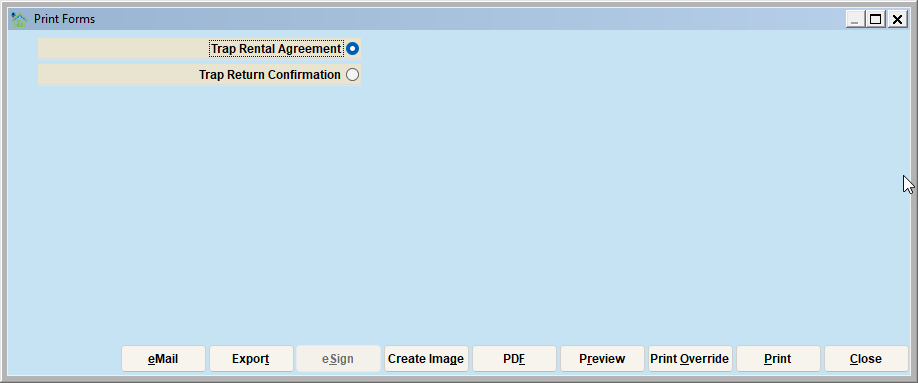
Batch Forms will allow you to print a group of forms, one for each record in the results list, and in the order of the results list. When the button is clicked, you will select the form(s) to be printed and click the Print (or Preview) button. The selected forms will print in the same order seen in the File Cabinet view.
Here is a sample of the Trap Forms menu. The selected forms will print in the same order seen in the File Cabinet view.
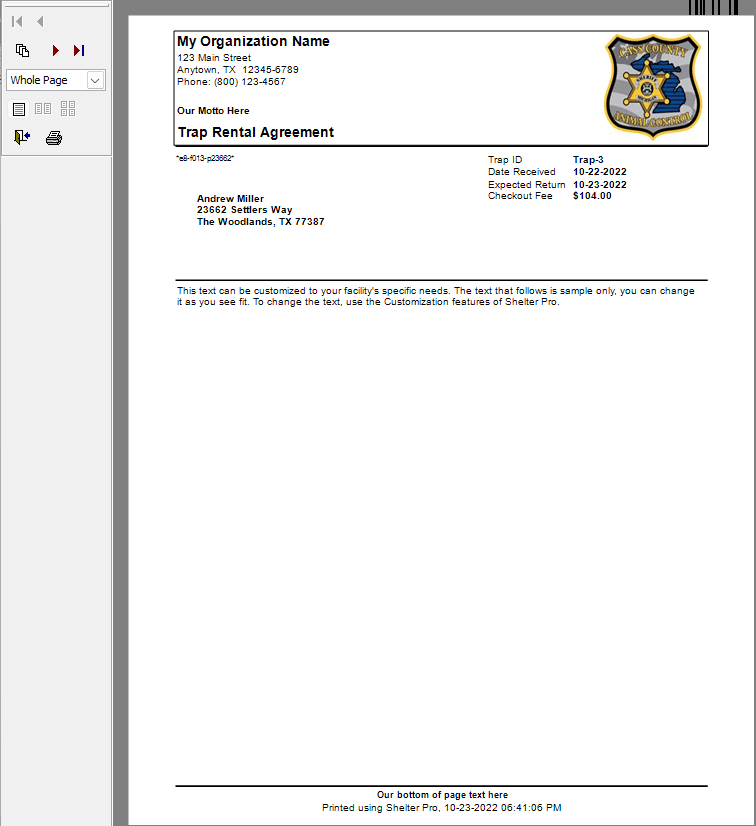
The Forms can be customized for the organization's needs. See Customize Form Text. The following are some examples of batch forms, but it is not an exhaustive list:
-Rental Agreements
-Return Confirmation
Next Topic
Comment or report problem with topic