
 Incident File Cabinet
For an overview of File Cabinets and their usage, click File Cabinets
The Incident File Cabinet is used to retrieve Incident records.
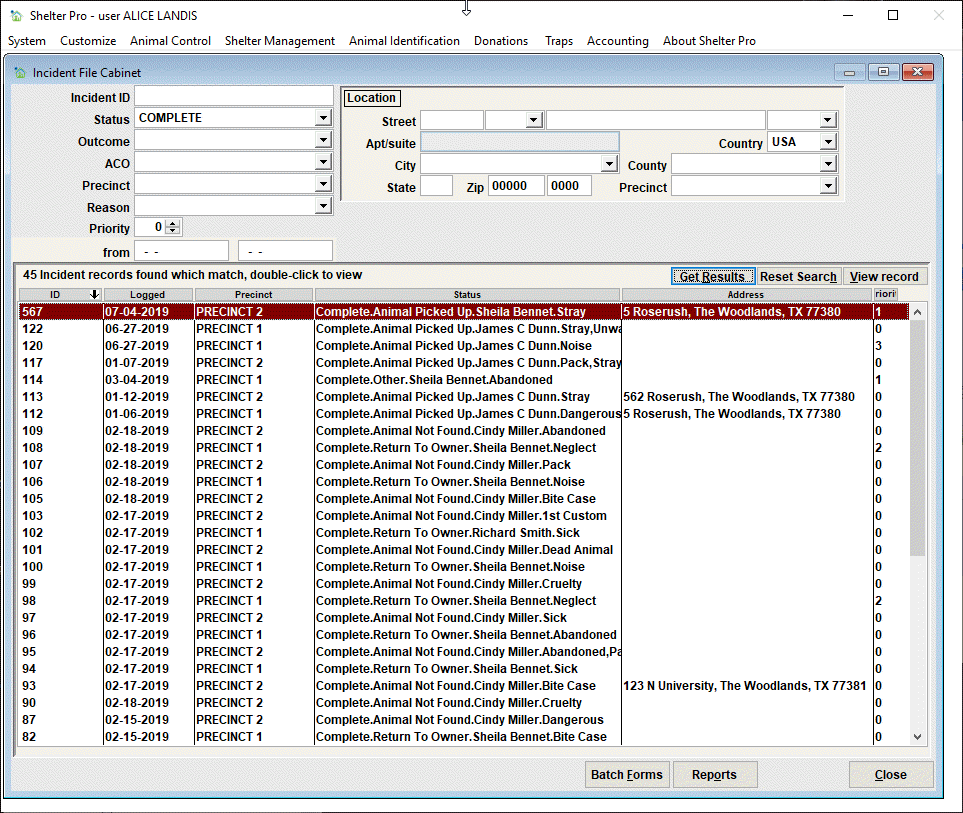
The various search filters include these:
Incident ID
If looking for a particular incident by its tracking number, enter it here.
Status
If looking for incidents currently in a particular status (Unassigned, Assigned, Pending, Complete, etc.), choose the targeted status in this selection.
Outcome
If looking for incidents with a specific outcome (Animal Picked Up, Report Not Valid, Pending At Location etc.), choose the targeted outcome in this selection.
ACO Dispatched
If looking for incidents assigned to a particular ACO, choose the ACO in this selection.
Precinct
If looking for incidents associated to a particular precinct, choose the targeted precinct in this selection.
Priority
If looking for incidents given a particular priority (0,1,2,3,4,5), choose the targeted priority in this selection.
Date Range
If looking for incidents logged within a particular date range, set the from date and to date here.
Location
If looking for incidents at a particular address, set the address values in this selection.
Get Results
Click this button if using 'user triggered' refresh after entering filter criteria.
For a discussion on file cabinet refresh behaviors, click My Shelter Pro - Other Items
Reset Search
Click this button to clear the search fields and begin a new search.
Working with the results
Sorting the results
By default, the results will sort by the first column, descending. The results can be re-ordered by simply clicking any of the column headers.Viewing a record
Either double-click the record in the results list, or single-click the record and click 'View record'. Either will cause the record to be loaded and viewed.
Batch Forms
Batch Forms will allow you to print a group of forms, one for each record in the list window. In this example, using the Batch Forms function would result in printing 45 forms.
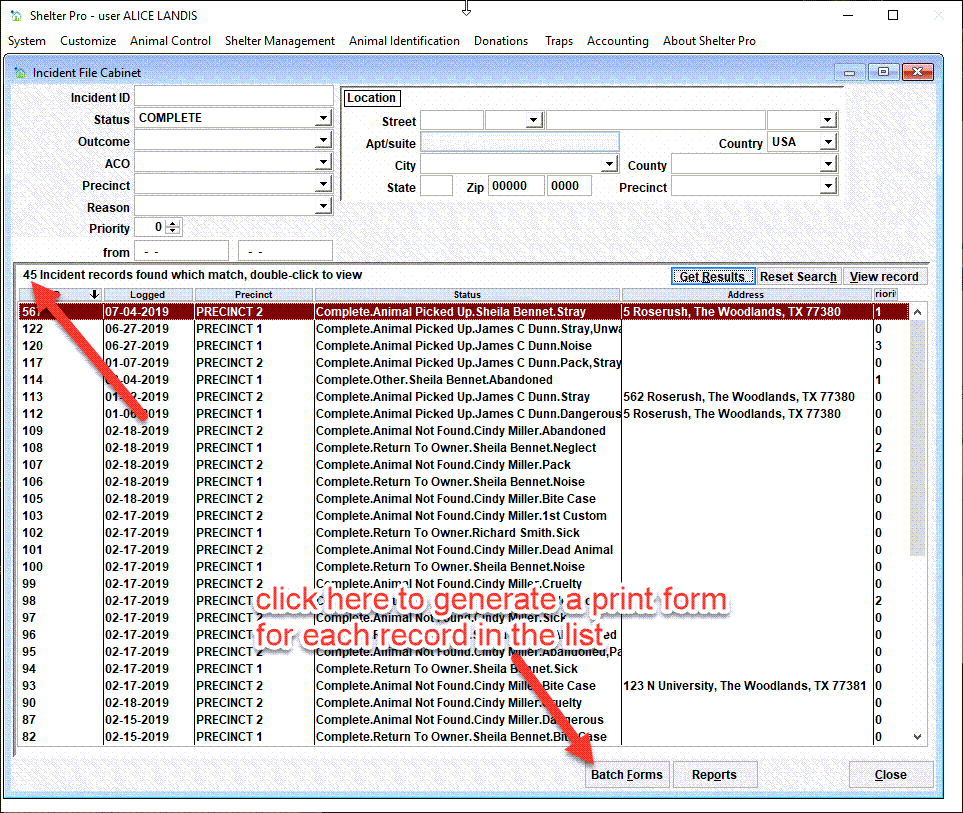
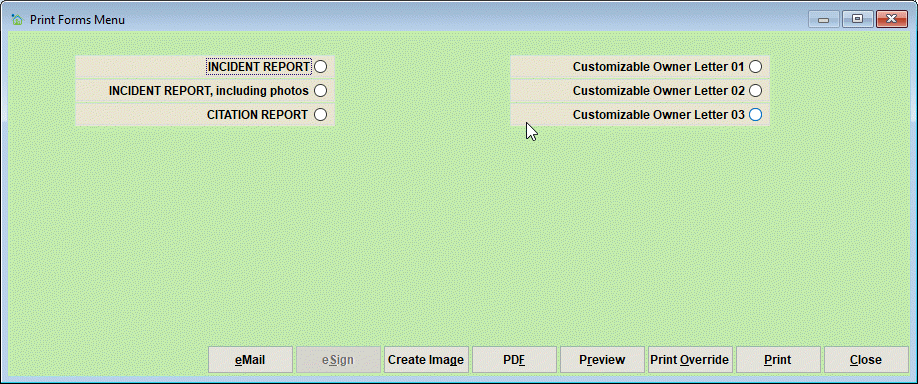
When the button is clicked, you will select the form(s) to be printed, and click the Print (or Preview) button. Here is a sample of the Incident Forms menu. You would choose the form to be printed for the results from the list. In our example, the print spool would generate 45 forms for the records retrieved in our list.
Tip - The selected forms will print in the same order seen in the File Cabinet view.
Next Topic
Comment or report problem with topic