
 Animal ID - File Cabinet
Animal IDs File Cabinet
For an overview of File Cabinets and their usage, click File Cabinets
To lookup existing Animal Identification Module Case records, from the main menu select Animal Identification, and then select Animal IDs File Cabinet. You will use the Animal IDs Cabinet search features to locate and work with previously created records.
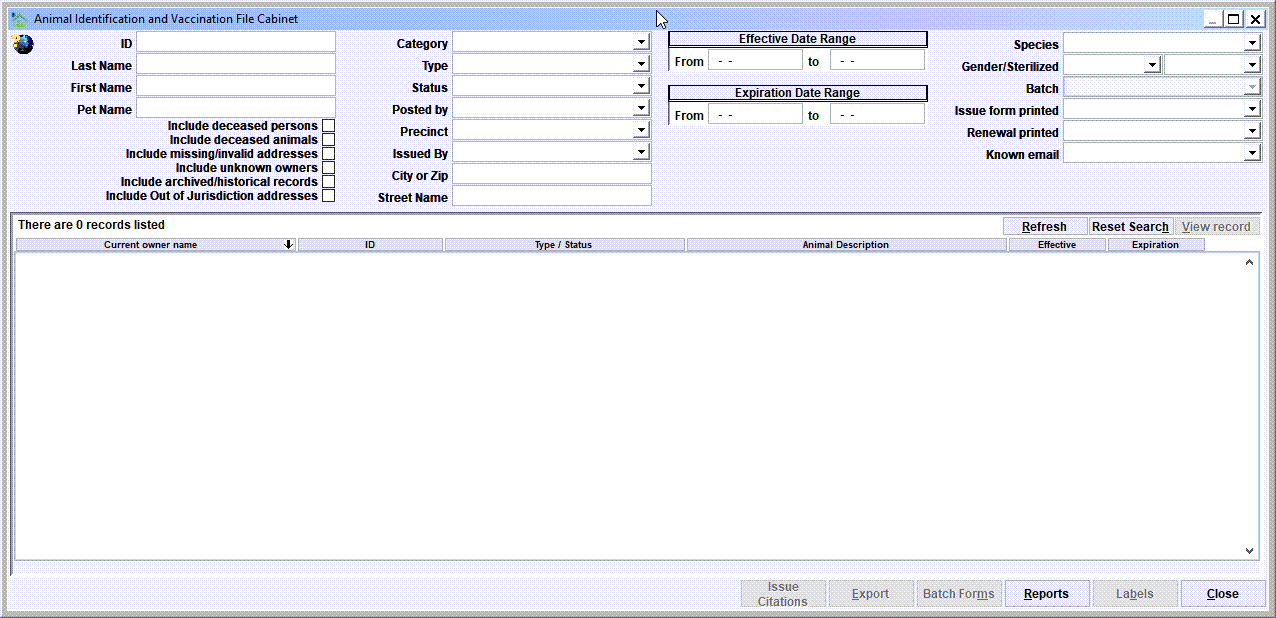
The records can be searched and retrieved by specifying an almost unlimited number of combinations of search filters.
A unique ID that is assigned to a record. Note that this searches all the ID types (licenses, vaccinations, microchips, other IDs) unless the search also limits the results to a specific category.
Last Name, First Name, Pet Name - these search for hits on the current owner name, and an animal's pet name.
Include deceased persons - by default, deceased citizens are not included in the results. Check his box to include deceased persons. See Person Record - deceased person for how a deceased person is specified.
Include deceased animals - by default, deceased animals are not included in the results. Check his box to include deceased animals. See Animal Record - deceased animal for how a deceased animal is specified.
Include missing/invalid addresses - by default, citizens with a missing or invalid address are not included in the results. Check his box to include persons who may have a missing/invalid address. See Invalid addresses for more details on invalid addresses.
Include unknown owners - by default, animals without a known current owner are not included in the results.
Include archived/historical records - by default, only 'the most recent' records are included in the results. For example, if a pet has multiple historical license records, only the most recent license would be included. Checking this box would cause historical records to also be included in the results.
Include Out of Jurisdiction addresses - by default, any persons with an address that is not deemed 'Out of Jurisdiction' are included in the results. See Out of Jurisdiction addresses for more details on out of jurisdiction addresses.
Category (License, Vaccinations, Microchips, Registrations) - limits the results to a specified ID record category.
Type (License types, Vaccination types, Microchip types, Registration types) - limits the results to a specified ID record type that is a defined type, or a type that exists on the database.
Status (Current, Expired, Missing, Historical, Expired - no citation, Missing - No Citationn, etc.) - limits the results to a specified ID record category. There's quite a bit more detail to be discussed on Animal ID record statuses which are discussed in the next topic. Click here if you want to jump into it now More details on Animal IDs status values.
Posted By - limits the results to ID records that were posted by a specific user. Note that this can be used to quickly find records that were posted by a citizen via Shelter Pro Portal.
Precinct - limits the results to ID records that were posted to a specified precinct. Note that this does not look at the precinct designated to any of the current owner addresses.
Issued By - limits the results to ID records that were issued by a specified third party, such as a particular vet, or another city/county satellite office.
City or Zip - limits the results to owners with a current address in a specified city or postal code.
Street Name - limits the results to owners with a current address on a specific street name.
Species - limits the results to a specified animal species.
Effective Date Range - limits the results to records with an effective date within the specified date range.
Expiration Date Range - limits the results to records with an expiration date within the specified date range.
Issue form printed - limits the results to records based on 'Cert printed date' being present or not present.
Renewal printed - limits the results to records based on the '1st renewal printed' or 'last renewal printed' date being present or not present.
Known Email - limits the results to based on the owner's email address being known or not known.
Gender/Sterilized - limits the results to animals with a specified gender and/or sterilization status.
Results list
The results of a search, including the count, will be shown the results list.
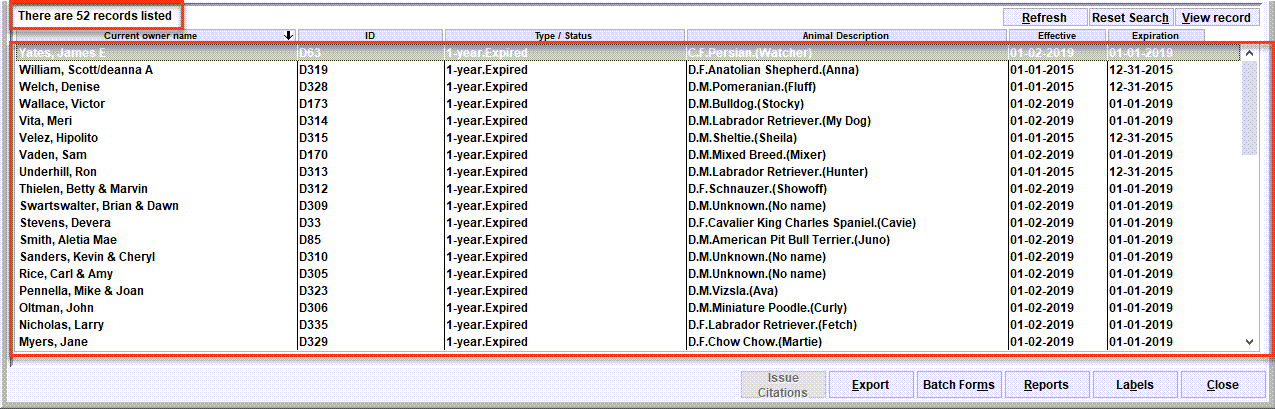
To view an id record, select the record in the list then click view record. Or double-click the record in the list. The id record will be loaded and will pop up on the screen.
Tip - sorting the results by a column
Notice that the results list can be resorted by any of the columns by clicking the column header.
Resetting the filters
Use Reset Search to clear the search filters back to empty values. You can then re-enter search filters to start a new search.

Batch Forms
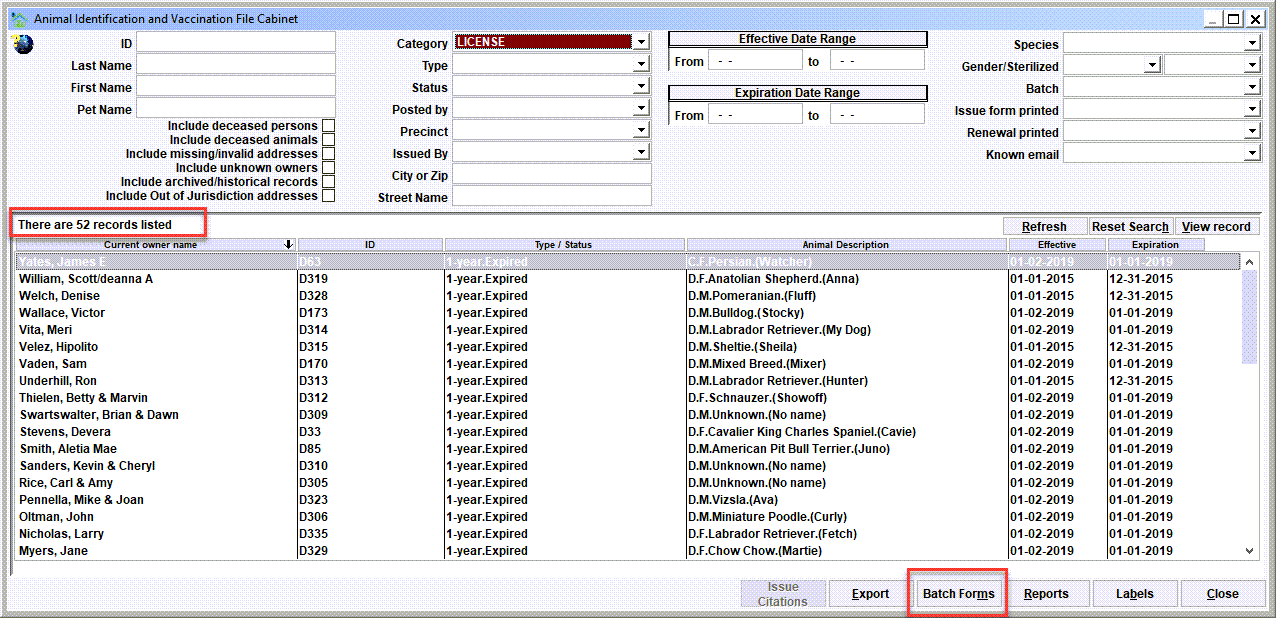
Batch Forms will allow you to print a group of forms, one for each record in the results list, and in the order of the results list. In our example, using the Batch Forms function would result in printing 52 forms. When the button is clicked, you will select the form(s) to be printed, and click the Print (or Preview) button.
Here is a sample of the Animal ID Forms menu. The selected forms will print in the same order seen in the File Cabinet view.
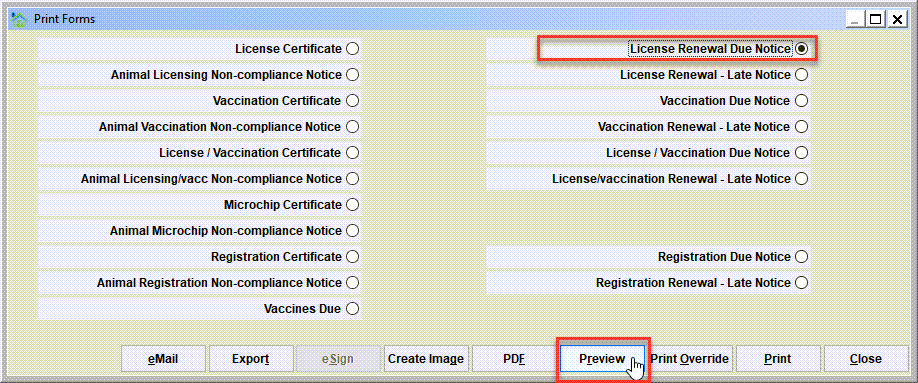
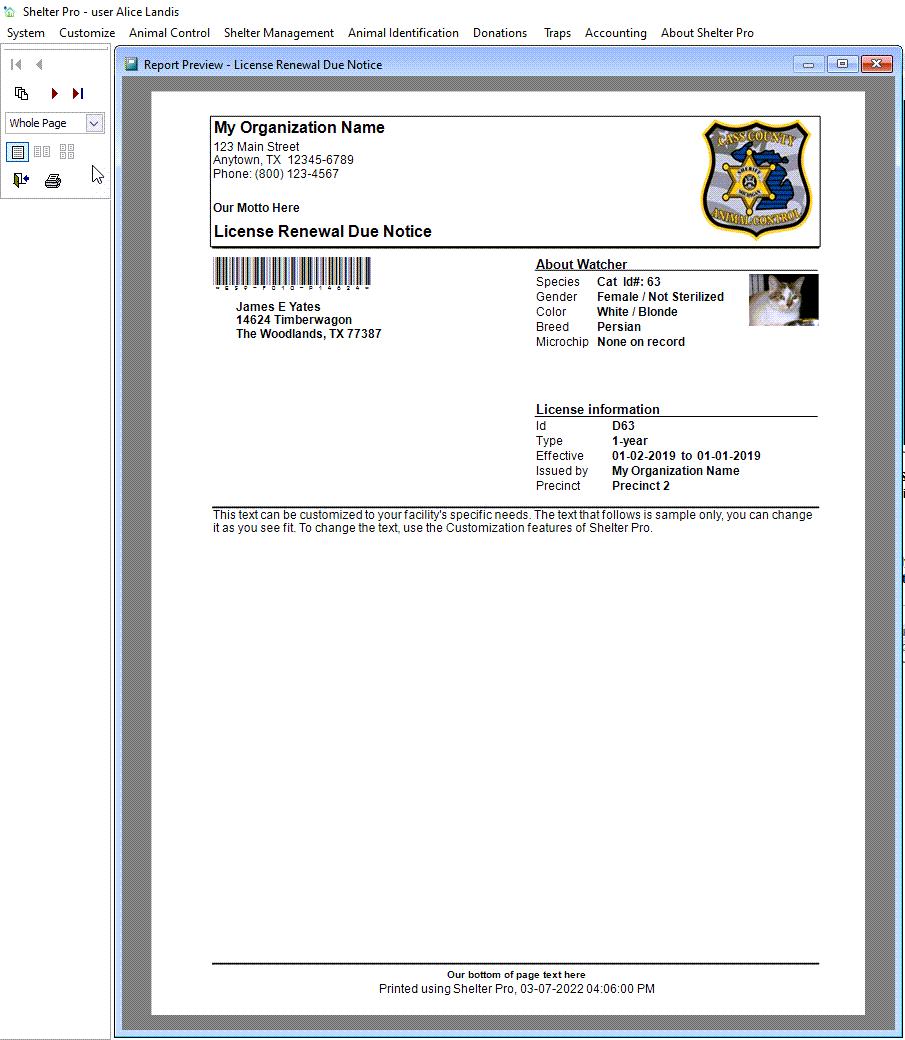
Here is a preview of the License Renewal Due Notices. Note that there would be 52 individual forms in this match.
Next Topic
Comment or report problem with topic